How to set the VAT rule for each buyer country and how to read the VAT number checks that decide whether a business buyer is invoiced without VAT.
For site operators with the manage site billing permission.
How VAT is decided
Every invoice is issued by the site's seller to the tenant's buyer. The VAT charged depends on the country in the buyer's billing address and on whether the buyer's tax id has been validated. For each country you keep a VAT rule: a treatment for validated business buyers, a treatment for everyone else, how a tax id earns "validated", and the VAT rate. A country with no rule in force is not sold to: renewals and sales for its buyers are refused.
VAT jurisdictions
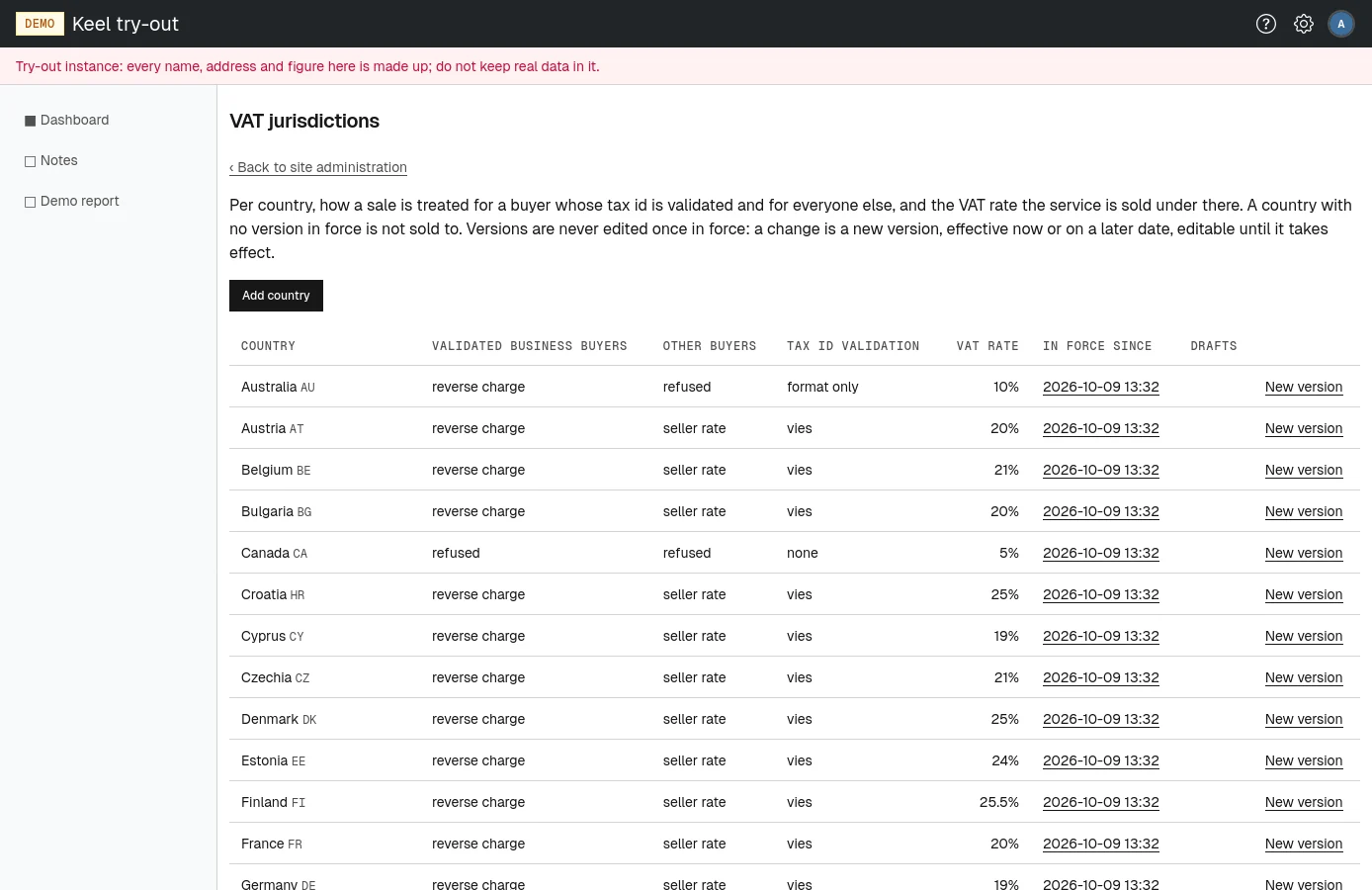
Open VAT jurisdictions on the site administration page, or go to /site/admin/vat-jurisdictions. Each country shows the rule in force: Validated business buyers, Other buyers, Tax id validation, VAT rate and In force since (with the number of earlier versions). Drafts lists versions waiting to take effect.
Treatments
- refused
- No sale. Refused for other buyers but not for validated business buyers means business buyers only; refused for both means no sales to the country.
- out of scope
- A sale that no VAT reaches. The invoice says it is outside the scope of VAT.
- reverse charge
- No VAT on the invoice; the buyer accounts for it in their own country. Only for validated business buyers.
- seller rate
- VAT at the rate of the seller's own country, taken from that country's rule.
- oss destination, local rate
- The buyer country's own rate, under a VAT registration of yours there. A rule using either cannot be saved yet.
Tax id validation
- vies
- The buyer's EU VAT number must be confirmed by VIES, the European Commission's register. See VAT number checks.
- format only
- The tax id must have the right format for the country.
- none
- The tax id is taken as stated.
Adding a country or changing its rule
A rule that is in force is never edited: invoices cite it as the rule they were issued under. A change is a new version, effective now or on a later date. A version that has not taken effect yet is a draft and can still be edited or deleted.
- Choose Add country for a new country, or New version on a country's row. The page New VAT jurisdiction version opens.
- For a new country, type its Country: the buyer's country as the billing address states it.
- Type Effective from, a date that is not in the past, or leave it empty to take effect the moment it is saved. It starts at midnight in the Time zone beside it, which is preselected as the zone of the country's capital; change it only if you know why.
- Under Treatment, choose the treatment for Validated business buyers and for Other buyers, and the Tax id validation.
- Type the VAT rate (%), a percent with at most two decimals, such as
23or25.5. Leave it empty only for a country without VAT. - Type a Remark saying why the version says what it says. It is required for a reverse charge on a tax id that is not validated.
- Choose Add version.
The version is listed under Drafts until it takes effect, then under the rule in force. Each change is recorded in the billing audit log. To change a draft, open it from Drafts, edit it and choose Save draft, or choose Delete draft. A version in force opens read-only, with a New version for <country> button.
VAT number checks
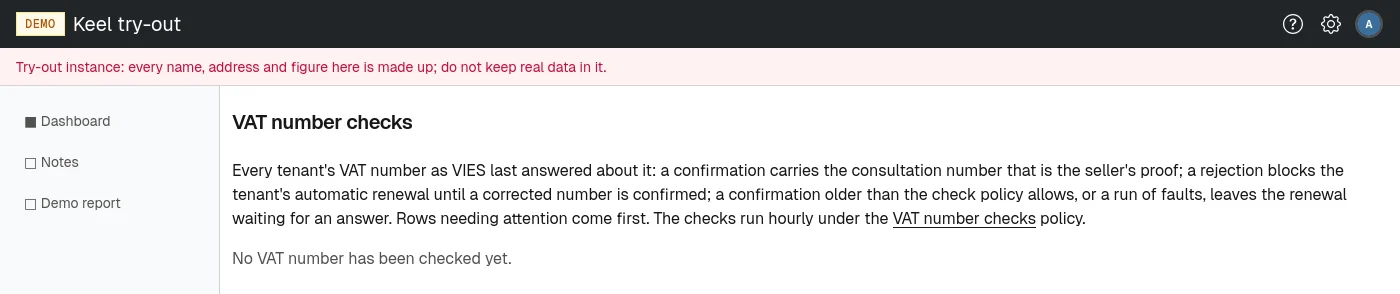
A buyer in another EU member state is invoiced without VAT only while VIES confirms its VAT number. Every hour, the service consults VIES for each tenant whose buyer has a VAT number and whose country's rule asks for VIES, spreading the checks over the interval set in the VAT number checks policy. Each answer is kept with its consultation number, which is the seller's proof. No check runs while no seller is configured, or while the seller is outside the EU VAT area.
Open VAT number checks on the site administration page, or go to /site/admin/tax-id-checks. Each VAT number is listed once with the latest answer, rows needing attention first, 50 to a page:
- Tenant and VAT number;
- Answer: "confirmed" in green; "stale", "rejected" or "no answer" in yellow, with the fault where there was one;
- Checked: when VIES was last consulted;
- Consultation: the consultation number of a confirmation;
- Registered as: the name and address VIES holds for the number.
What needs attention
- rejected
- VIES does not list the number as registered for trade within the EU. The tenant's automatic renewal is refused, and no invoice without VAT is issued, until a corrected number is confirmed. Ask the tenant's administrators to correct their billing details.
- stale
- The last confirmation is older than the policy allows, because VIES has not answered since. The automatic renewal waits until VIES answers again.
- no answer
- The last consultation faulted, for example because VIES was unreachable. The service tries again at the next interval.
Changes are reported by email once, when they happen: a number that VIES stops confirming, or confirms again, is reported to the tenant's billing address and the site's billing emails; a confirmation that grows too old with only faults since is reported to the billing emails alone. Each report is recorded in the billing audit log.