How to check and rotate your organization's customer managed key, the key at the top of everything that protects its data.
For administrators who hold the permission manage encryption keys, usually a security officer or key custodian.
What the customer managed key is
Your organization's secrets, such as the mail server password, the identity provider's client secret and the keys that sign sign-in sessions, are stored encrypted under keys of their own. Those keys are in turn protected (wrapped) by one key at the top: the customer managed key. Rotating it replaces that top key with a new one and re-wraps every key beneath it.
Your organization is given a customer managed key when it is created. You rotate it when your security policy says so, or when you suspect the key, or a copy of it, was exposed.
The key's page
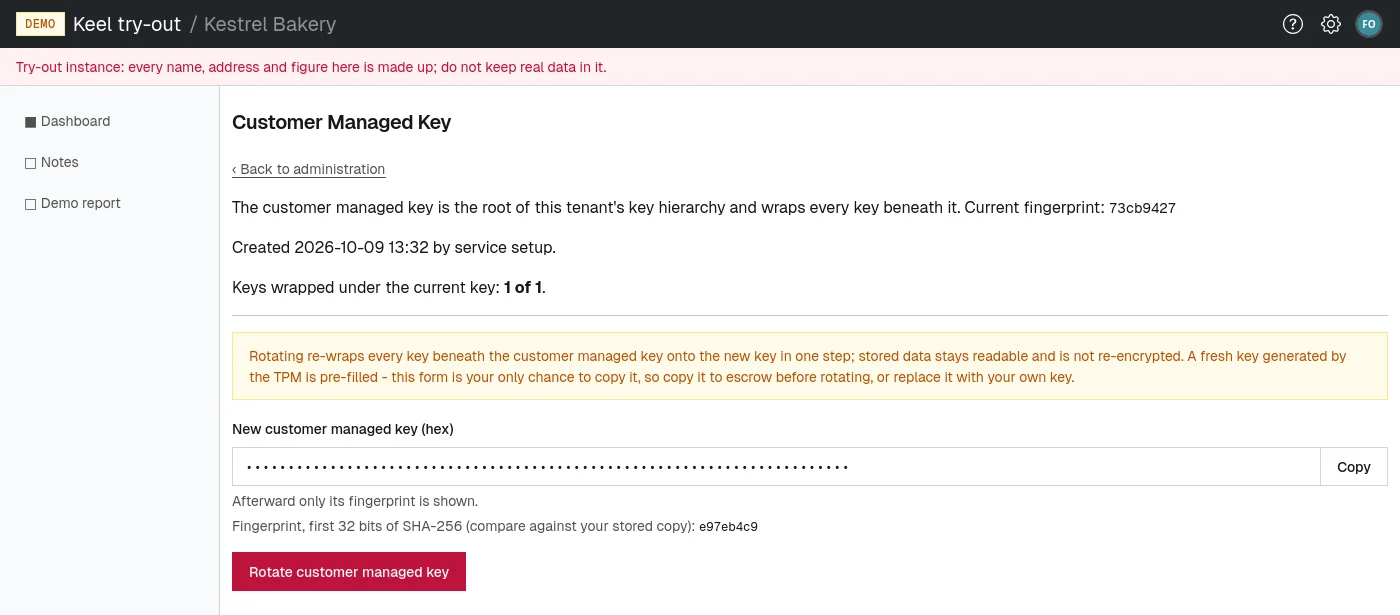
Open Encryption keys from the administration page or the settings menu. The page, titled Customer Managed Key, is at /tenants/<your tenant>/admin/cmk. It shows:
- the Current fingerprint: a short code that identifies the key without revealing it. Compare it with the fingerprint of the copy you keep;
- when the key was created and by whom;
- Keys wrapped under the current key, as a count such as 4 of 4.
Rotating the key
The form at the bottom of the page comes with a freshly generated key already filled in. This is the only time the new key is ever shown: afterward the page shows only its fingerprint.
- Under New customer managed key (hex), choose Copy and store the key in your organization's key escrow, such as a password safe that more than one trusted person can open. Note the fingerprint shown under the field.
- Alternatively, replace the filled-in value with a key of your own, written in hexadecimal. The fingerprint under the field changes as you type, so you can compare it with your stored copy.
- Choose Rotate customer managed key, and confirm "Rotate the customer managed key and re-wrap all dependent keys?".
The page reloads with the new fingerprint, and the count of wrapped keys shows all of them under the new key. Members notice nothing: no data is re-encrypted, everything stays readable, and nobody is signed out. The rotation is recorded in the audit log.
When a rotation did not finish
If something interrupted a rotation, the page says "A rotation's re-wrap is unfinished; the previous key still protects some of them." and the count shows fewer keys under the current key than in total. Your data is still safe and readable.
- Choose Rewrap remaining keys. The count rises to the total and the message disappears.