How to give someone the Tenant Setup Administrator role when a tenant's administrators have lost access, and how to fix or clear a tenant's identity provider that locks its members out.
For site operators with the manage tenants permission.
Access control
A tenant's name, people and roles are managed by its own administrators, not by operators. From the tenant page an operator can only let someone back in, for example when the only administrator has left the company.
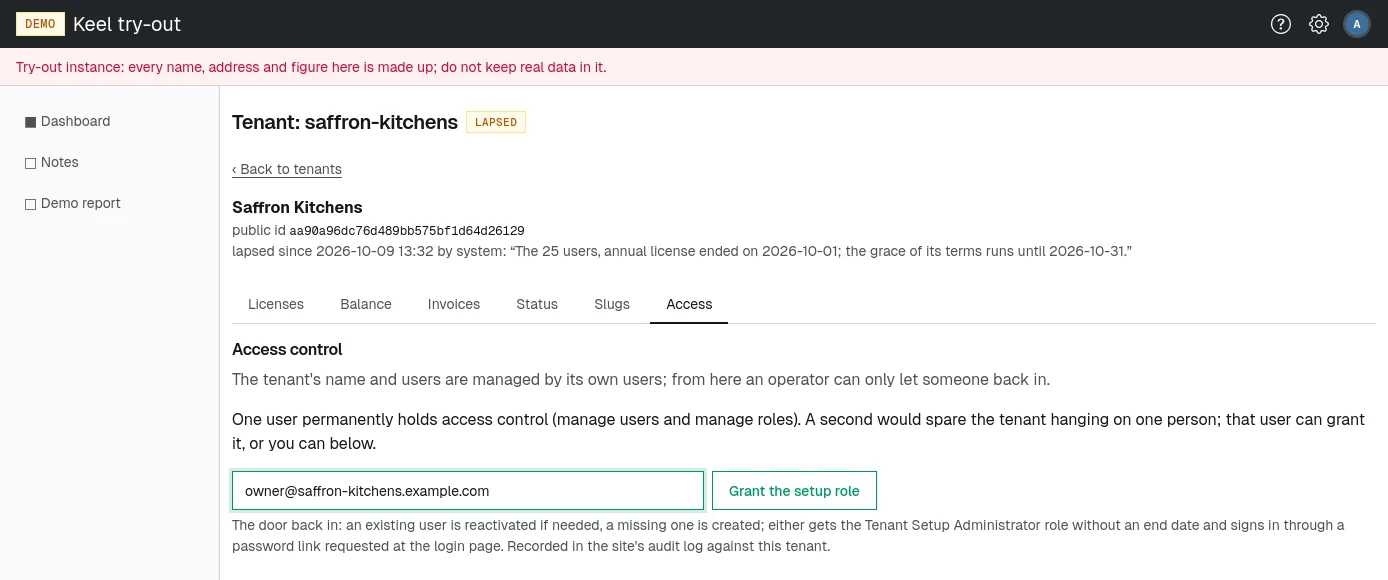
Open the tenant page and choose the Access tab. Under Access control it says how many users permanently hold access control (both manage users and manage roles, with no end date):
- none, in red: nobody can manage the tenant's people and roles, so let someone in;
- one: the tenant depends on a single person, and a second would be wise;
- two or more: the tenant can look after itself.
Granting the setup role by email
Before you grant the role, confirm through your usual channels that the person is entitled to administer the tenant.
- On the Access tab, type the person's address in Email address to let in.
- Choose Grant the setup role and confirm.
If the address belongs to an existing user, that user is reactivated if needed; if not, a new user is created. Either way, the user gets the Tenant Setup Administrator role with no end date, which holds every tenant permission. No email is sent: the person opens the tenant's login page and requests a password link (see Setting your password). The grant is recorded in the site's core audit log against this tenant.
The tenant's identity provider
A tenant can have its members sign in through its own OpenID Connect provider, such as the company's single sign-on. While one is set, it is the members' only way in: passwords and password links stop working. The tenant's administrators set it up on their own settings pages (see Settings in the administrator part).
When the provider locks the members out, for example because its client secret expired or a setting is wrong, the Identity provider section of the Access tab lets you fix or clear it. It shows the configuration in use and any warnings about it. The fields are the same as on the tenant's own page: the Callback address to register at the provider, Issuer, Client id, Client secret, Additional scopes (optional), who may sign in, and the Mappings from the provider's claims to roles or groups.
Fixing the provider
- Correct the fields that are wrong.
- If you have an account at the tenant's provider, choose Test sign-in. A sign-in at the provider opens; when it passes, the configuration can be saved from the test's results.
- If you have no account there to test with, choose Save without a test sign-in and confirm. Only the provider's discovery document, its keys and the client's credentials are checked.
A refused save says The identity provider was not saved: with the reason. A saved change is recorded in the tenant's own audit log as made by setup, and in the site's core audit log as yours.
Clearing the provider
- Choose Clear the identity provider and confirm.
The tenant's members sign in with passwords again, including through a password link after you grant the setup role. The tenant's administrators can set up the provider again later.