What you see after signing in: the dashboard, the header, the left menu, the account and settings menus, and the error page.
For every member of a tenant. Some menu entries appear only to members whose roles allow them.
Keel Platform and the application built on it
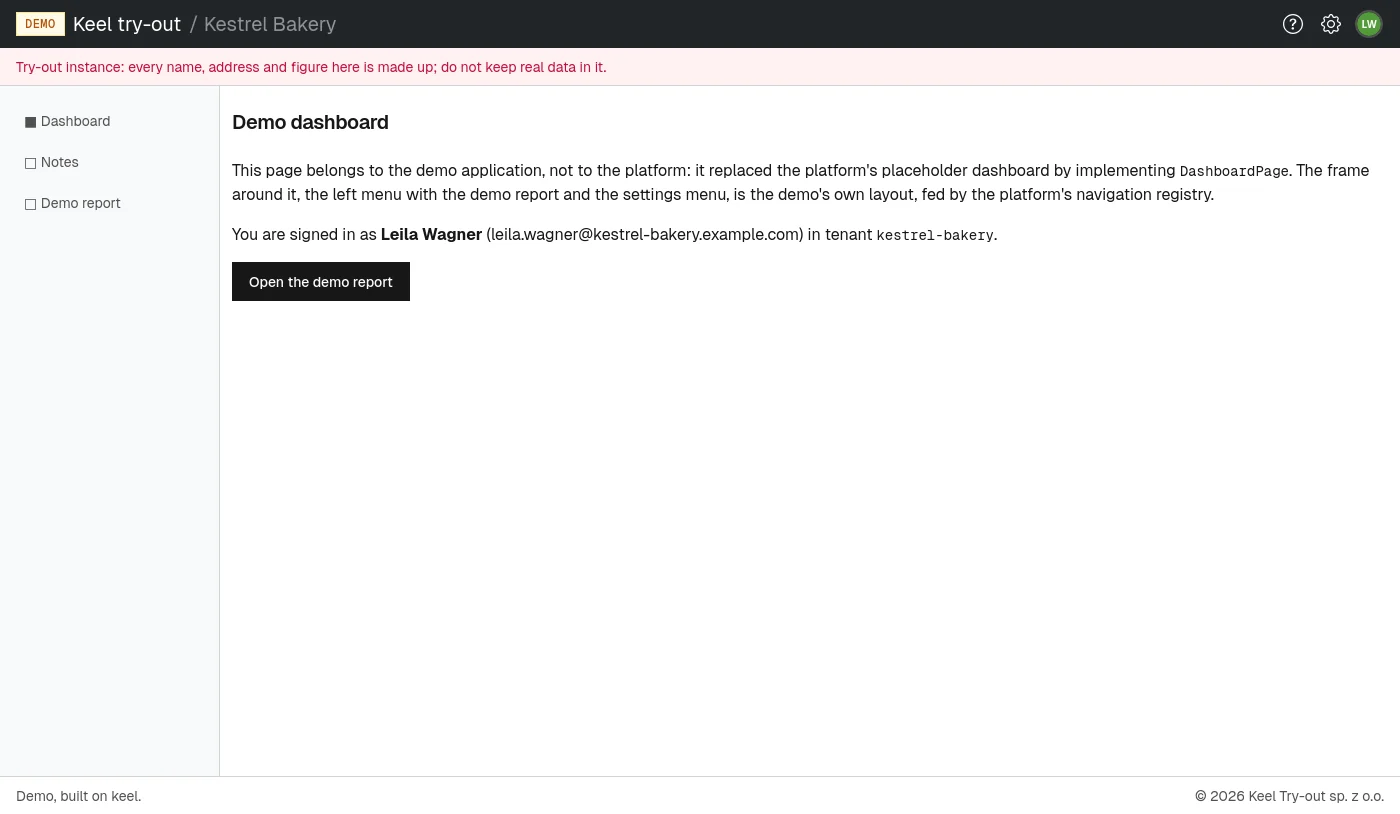
Keel Platform is the platform underneath a product. It provides what every member uses the same way: signing in, your profile, and your organization's administration. The product built on Keel Platform provides the rest: the front page, the dashboard and its own pages in the left menu. So the dashboard you see depends on the product your organization uses. This manual describes Keel Platform's own pages; the pictures come from the demo application shipped with Keel Platform.
The dashboard
After you sign in, you arrive on your tenant's dashboard, at /tenants/<slug>/dashboard. Choosing the service's name in the header, or Dashboard in the left menu, always brings you back here.
If the product has not provided a dashboard of its own, Keel Platform shows a plain page titled Dashboard that says whom you are signed in as and links to Your profile. A red Placeholder. notice on it is meant for the people building the product, not for you.
The header
The header across the top of every page shows:
- the service's name, and next to it the name of the organization you are working in. If you are signed in to several organizations, this tells you which one the page belongs to;
- a gear icon for the Settings menu, only if you administer something (see The settings menu);
- your initials in a circle, which open the account menu.
A line of text above the page content, across the full width, is a notice from the people running the service. In the try-out, for example, it warns that all data there is made up.
The left menu
Once you are signed in, a menu on the left starts with Dashboard and lists the product's pages. Each entry appears only if your roles let you open that page, so two colleagues may see different menus.
The account menu
Choose your initials in the top right corner. The menu shows your name, your email address and which organization you are signed in to, then:
- Also signed in to: the other organizations you are signed in to in this browser, if any; choose one to switch;
- Sign in to another organization: opens the tenant step of the login;
- Profile: your own settings (see Your profile);
- Log out: signs you out of this organization (see Signing out).
The settings menu
The gear icon appears only for members who administer their organization or the site. It holds Administration followed by your organization's name, and the administration pages your roles allow. People who run the service also see Site administration. The administrator part of this manual describes these pages; start with the administrator overview.
If you need something an administrator controls (a role, a change of email address, a larger plan), ask the person who manages it in your organization.
Dates and times
Dates and times are shown in your organization's time zone, unless you choose your own on your profile (see Time zone).
When something goes wrong
If a page cannot be shown, an error page appears instead. Its title says what kind of problem it is, for example Page not found, Access denied (your roles do not allow the page) or Too many requests. Under the message is a line Quote reference ... if you contact support. Pass that reference on when you report the problem. Return home takes you back to the front page or your dashboard.
A page titled Stale page means a form was open in your browser from an earlier visit. Go back, reload the page, and submit the form again.