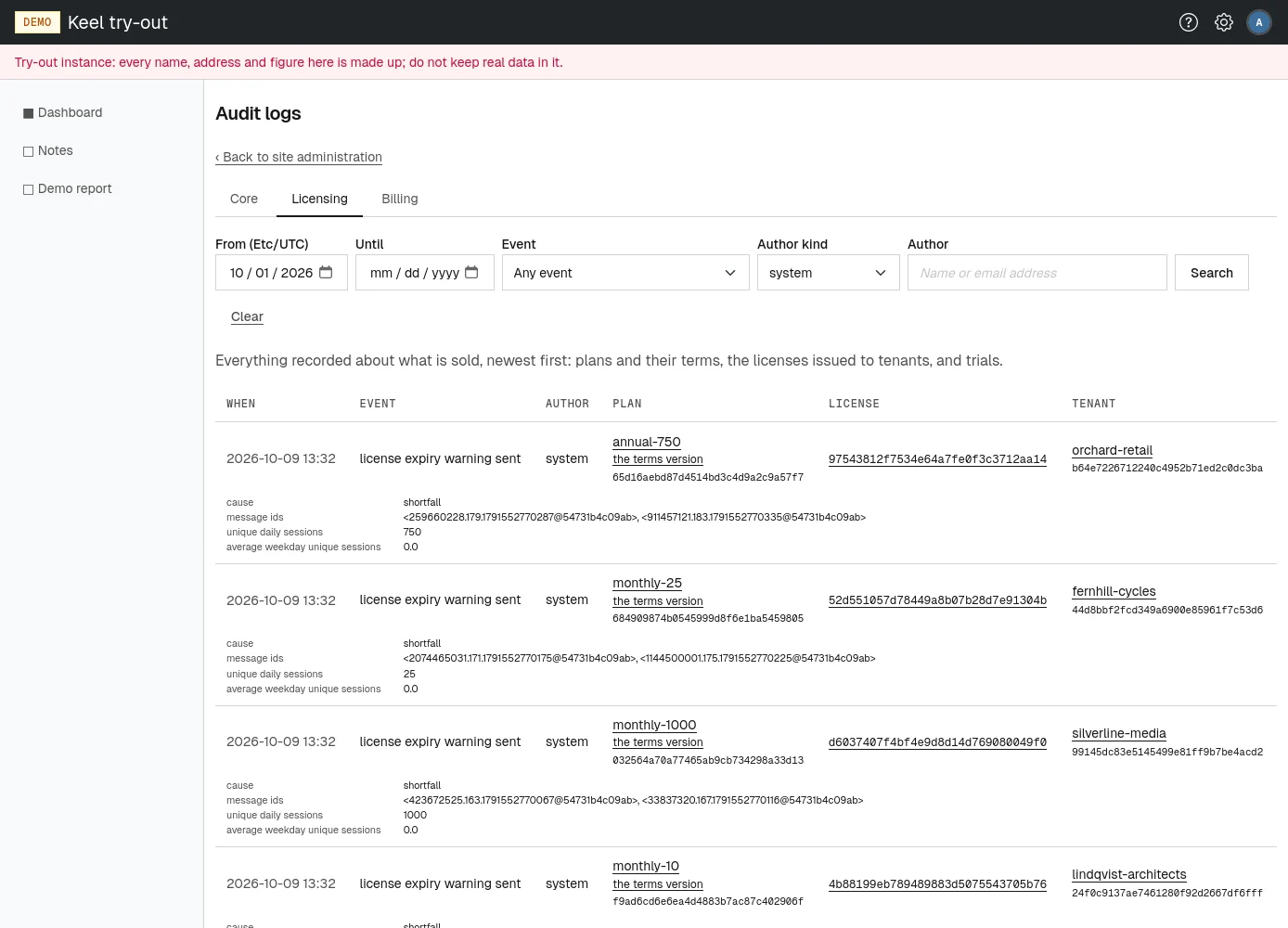
How to read and search the site's three audit logs: core, licensing and billing.
For site operators with view core audit log, view licensing audit log or view billing audit log. Each log needs its own permission.
The three logs
Every change made on the site administration pages, and every change the service makes on its own, is recorded with when it happened, what happened and who did it. The site keeps three logs:
| Tab | What it records | Columns beyond When, Event and Author |
|---|---|---|
| Core | The deployment itself: tenants and their slugs and status, setup roles granted, identity providers fixed, site operators, site settings and the site's keys. | Tenant, Subject (a slug, a setting or a key) |
| Licensing | What is sold: plans and their terms, the licenses issued to tenants, renewals, trials and the notices sent about them. | Plan, License, Tenant |
| Billing | The money side: bank accounts, statement imports, VAT jurisdictions, VAT number checks and invoices. | Tenant, Invoice, Amount, Account, Jurisdiction |
Open Audit logs on the site administration page, or go to /site/admin/audit-logs. You land on the first log your permissions allow, and the tabs at the top lead to the others you may read. Entries are listed newest first, 100 to a page; move through them with Newer and Older.
The Author column names an operator by email address while they can still be named; otherwise it gives the kind of author:
- setup: the platform setup page, or a self-service trial;
- system: the service acting on its own, such as the hourly licensing check or a VAT number check;
- site operator: an operator, shown with their public id when their email address is no longer known;
- user and identity provider: a tenant member, or a tenant's identity provider at sign-in.
Where an entry has details, such as the value a setting was given or the reason for a status change, they appear on a line under it. After the period set in the site retention policy, an entry's source address and details are blanked; the event, its author and what it touched stay for good.
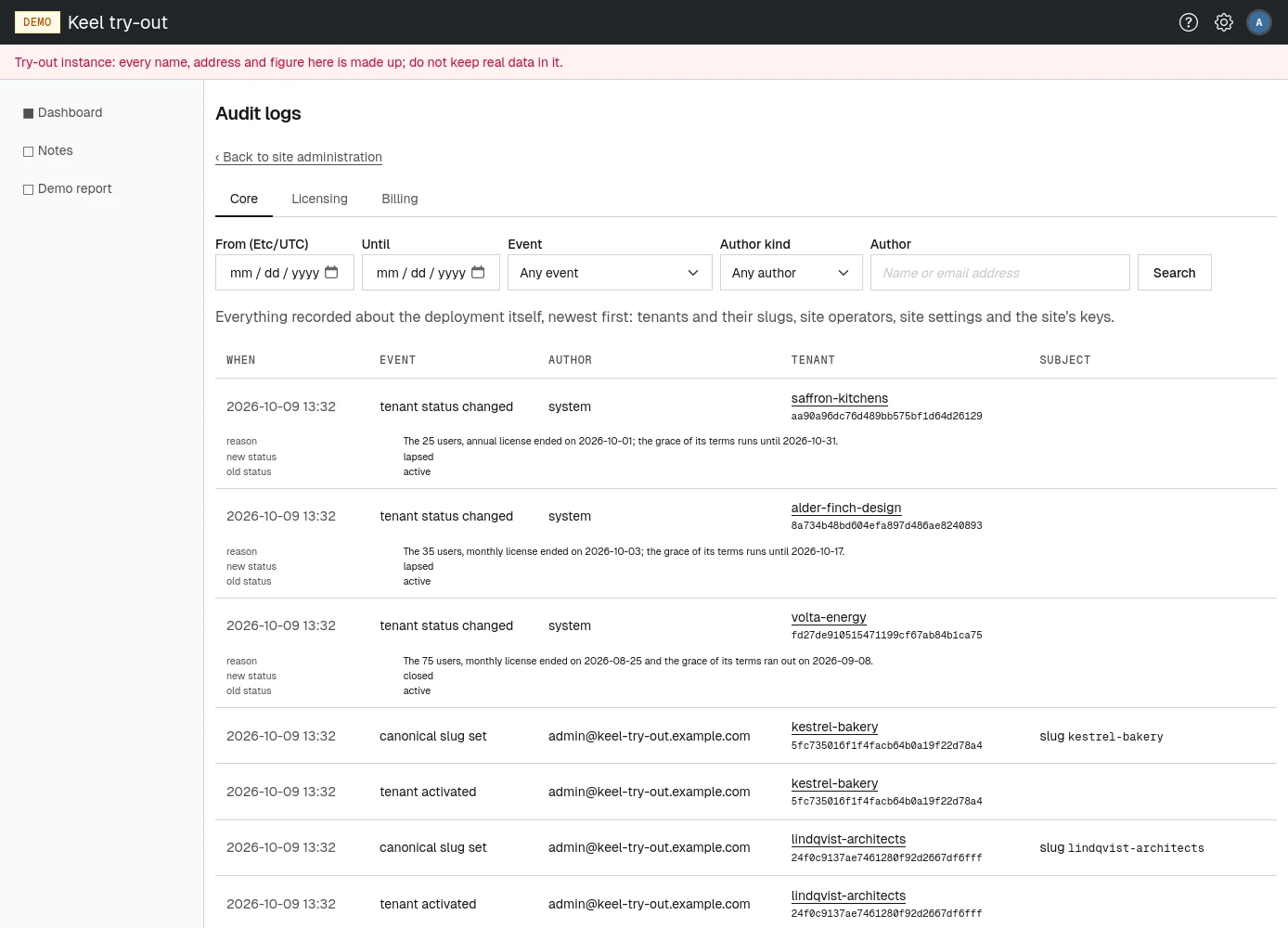
Searching a log
- Fill in any of the search fields above the log:
- From and Until: the first and last day to show, in your time zone (named beside From);
- Event: one of the events this log holds, or Any event;
- Author kind: setup, system, site operator, user or identity provider, or Any author;
- Author: part of an operator's email address or name.
- Choose Search.
The log shows the first page of matching entries, and the search stays applied as you page through. "Nothing recorded matches the search." means no entry fits. Choose Clear to see the whole log again.