How to find, add, deactivate and reactivate the members of your organization, and grant them roles.
For administrators who hold the permission manage users.
The list of people
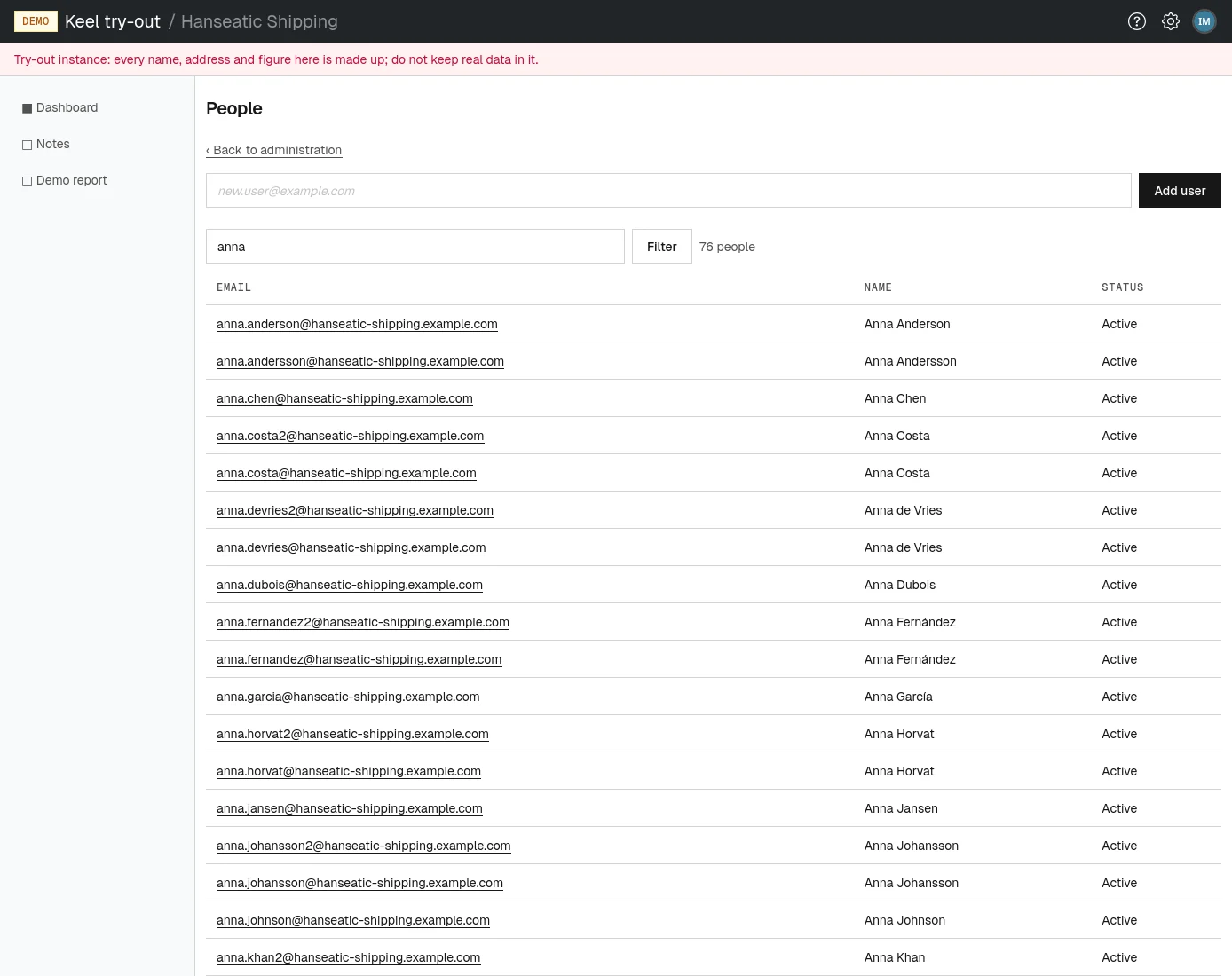
Open People from the administration page or the settings menu. The page, at /tenants/<your tenant>/admin/users, lists every member with their Email, Name and Status (Active or Inactive). Deactivated members stay on the list.
The list shows 50 people to a page. Beside the filter you see how many people match, for example 12 people. Use Previous and Next under the list to move between pages.
- Type part of a name or an email address into Filter by name or email address.
- Choose Filter. The list reloads at its first page with only the matching people, and the count changes to match. The pages keep the filter until you change it. If nobody matches, the page says "No one matches the filter."
Adding a person
- Type the person's email address into the field at the top of People.
- Choose Add user. The person appears in the list, active, with no name and no roles.
Keel Platform does not send the new member an email. Tell them the address of your organization and ask them to sign in: on the sign-in page they enter their email address and choose Send me a password link, and the email that arrives lets them choose a password (see Setting your password). Until you grant them a role, directly or through a group, they can sign in but cannot do anything that needs a permission.
Adding an address that belongs to a deactivated member reactivates that member instead of creating a second one. If your organization signs in through an identity provider, see below: you usually do not need to add anyone by hand.
A person's page
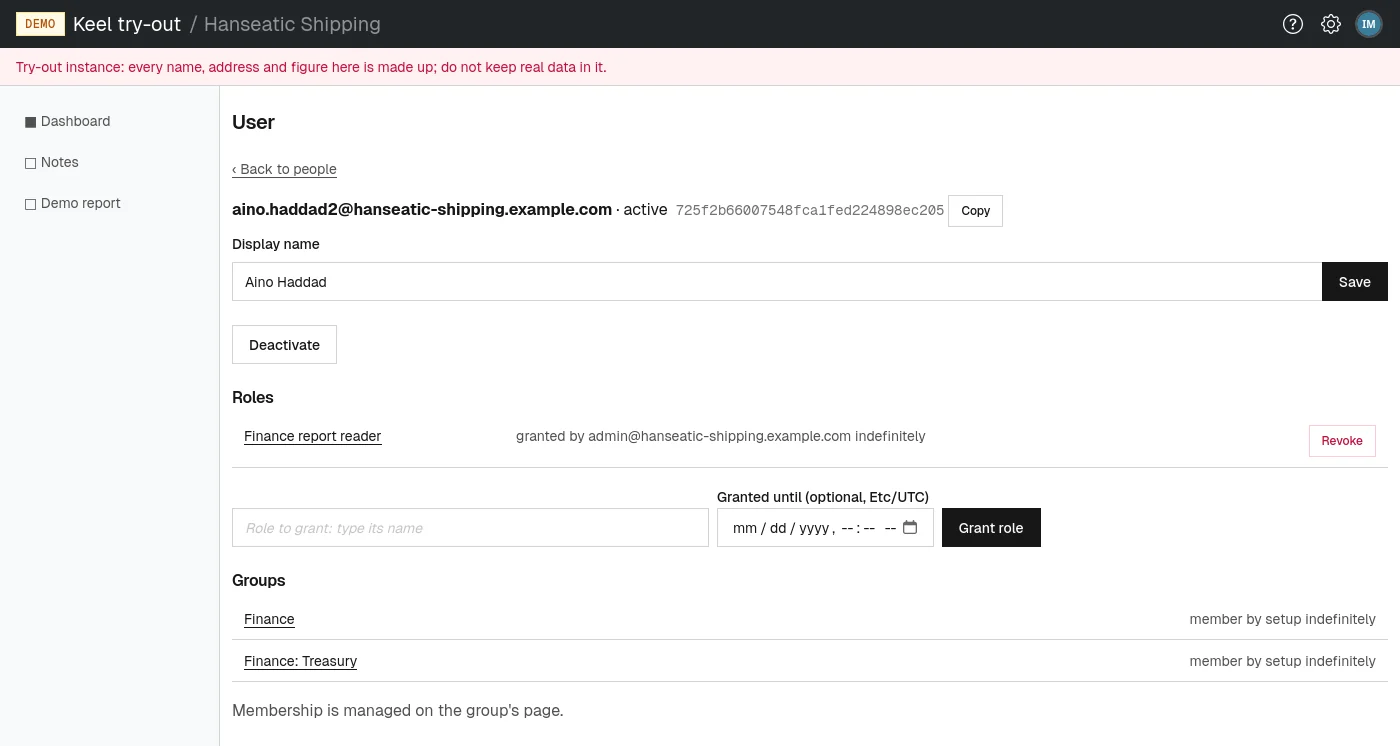
Choose an email address in the list to open that person's page. At the top you see their email address, whether they are active or inactive, and a short identifier with a copy button, which helps when you report something to the site operators.
Changing the display name
- Edit Display name.
- Choose Save. The new name shows wherever the member is named, from their next page view.
Members can also change their own name on their profile (see Your profile).
Deactivating and reactivating
Keel Platform never deletes a member. You deactivate them instead.
- On the person's page, choose Deactivate. The status changes to inactive.
From their next click, the person is signed out and cannot sign in again, including from browsers they chose to stay signed in on. Their roles and group memberships stay recorded, so reactivating them restores exactly what they had. To let them back in, choose Reactivate on the same page.
Deactivating is refused if it would leave the organization without someone in charge (see Keeping someone in charge).
Granting a role directly
The Roles table lists the roles granted to this person directly, each linked to the role's page, with who granted it and until when ("granted by ... indefinitely" or "granted until ..."). Roles the person holds through a group are not listed here; see their groups below.
- In Role to grant: type its name, type part of the role's name and pick it from the suggestions.
- Optionally, set Granted until to the date and time the grant should end. The field is in your organization's time zone, shown in its label. Leave it empty to grant the role with no end.
- Choose Grant role. The role appears in the table, and the person can use its permissions from their next click.
A grant with an end date ends by itself at that moment. It must last at least one hour.
Revoking a role
- In the Roles table, choose Revoke beside the grant.
The grant ends at once and disappears from the table; the audit log keeps the record. The person loses the role's permissions from their next click, unless they also hold them through another role or a group.
Groups
The Groups section lists the groups the person belongs to, each with its membership period. Membership is managed on the group's page, not here; see Groups.
Browsers staying signed in
If the person chose to stay signed in on some browsers (see Staying signed in on a browser), the page lists them under Browsers staying signed in, with Name, Chosen from, Since, Last seen and Signed in until.
- Choose Forget all browsers.
- Confirm the question "Forget every browser this member stays signed in on?". Each of those browsers asks for the password again at its next visit.
Do this when a member reports a lost or stolen device.
When your organization signs in through an identity provider
If your organization has set up an identity provider (see Signing in through an identity provider), members sign in there and some things on these pages work differently:
- Members do not use passwords, authenticator codes, password links or staying signed in.
- A person the provider admits becomes a member at their first sign-in. You do not need to add them first. A person you added by hand is linked to the provider by their email address the first time they sign in through it.
- A linked member's page shows "Linked to the identity provider as" followed by their identifier at the provider. Their email address and Display name follow the provider at every sign-in, so the name field cannot be edited here; the page says "The display name follows the identity provider."
- Roles the provider manages are left out of the role picker, and the page explains when every role is managed that way. Members hold those roles exactly while the provider says so.
- Deactivating still works: a deactivated member is refused even when the provider vouches for them, and signing in through the provider never reactivates anyone.