How to register the bank accounts tenants top up, import their bank statements, find transactions, and how payments reach a tenant's balance.
For site operators with the manage site billing permission.
Bank accounts
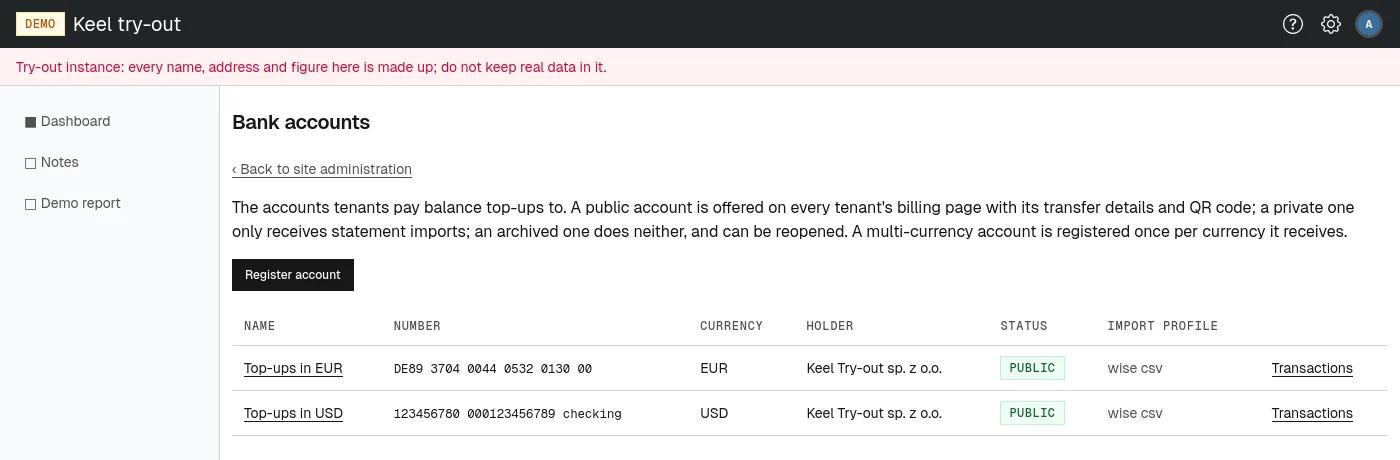
Tenants pay by bank transfer to the site's accounts. Open Bank accounts on the site administration page, or go to /site/admin/bank-accounts. Each account shows its Name, Number, Currency, Holder, Status and Import profile, with a link to its Transactions.
An account has one of three statuses:
- public: offered on every tenant's billing page that pays in its currency, with its transfer details and a QR code, and accepts statement imports;
- private: not offered to payers, but still accepts statement imports;
- archived: neither offered nor imported into. It can be reopened by changing its status.
A multi-currency account, such as a Wise account with euro and dollar balances, is registered once per currency it receives.
Registering an account
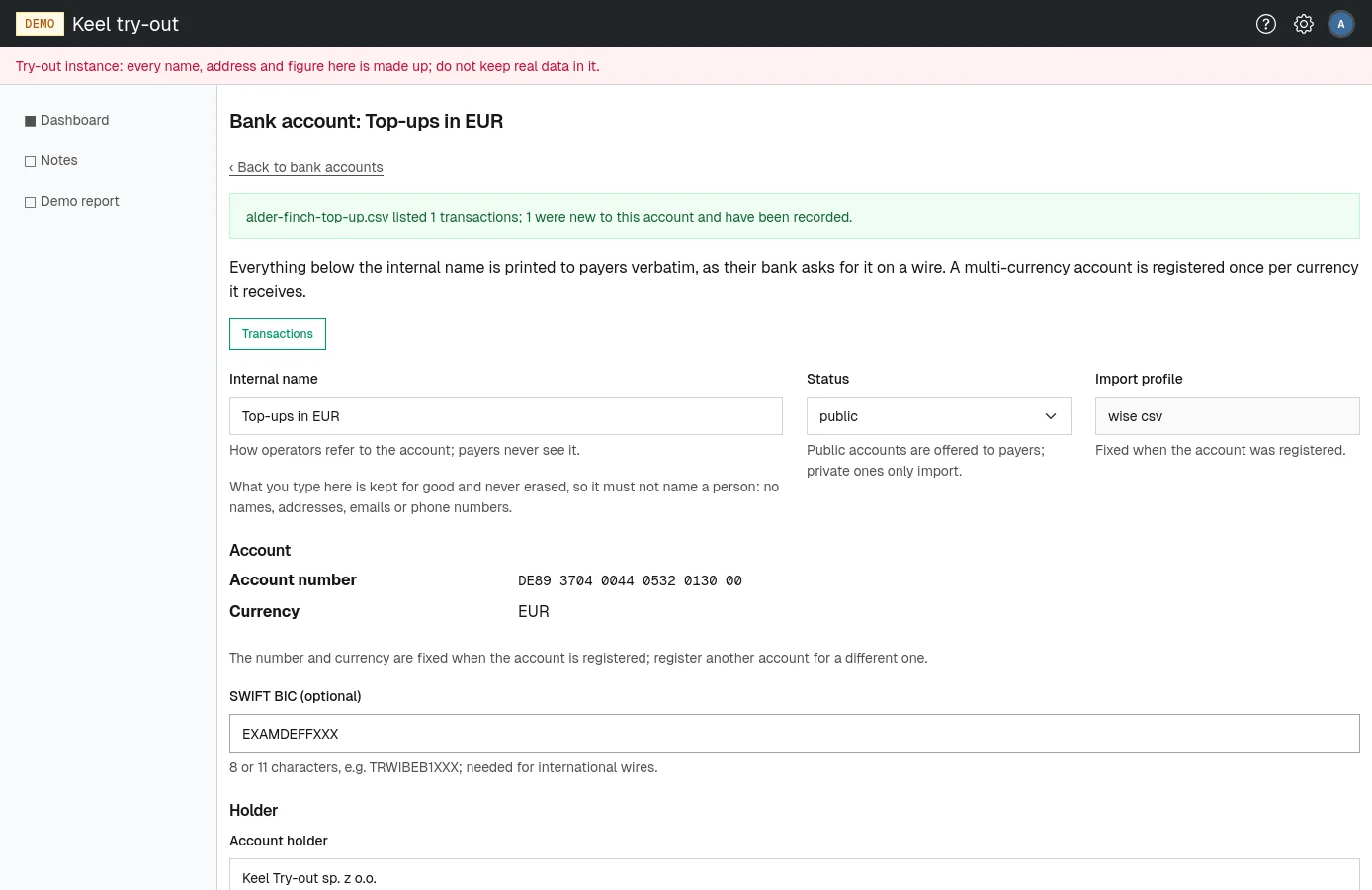
Everything below the internal name is shown to payers exactly as typed, the way their bank asks for it on a transfer form. Copy it from your bank's account details.
- Choose Register account.
- Type the Internal name, how operators refer to the account, such as "Top-ups in EUR". Payers never see it. It is kept for good, so it must not name a person.
- Choose the Status: public to offer it to payers, private to only import its statements.
- Choose the Import profile, the format of the statements you will import. It cannot be changed later.
- Under Account, choose the Numbering scheme (IBAN, UK sort code and account, or US routing and account), type the Account number and choose the Currency. These three cannot be changed later.
- Optionally type the SWIFT BIC, needed for international transfers.
- Under Holder, type the Account holder, the Address above the country, and the Country.
- Under Bank, type the Bank name, its Address and its Country.
- Choose Register account.
The account is listed and recorded in the billing audit log. A public account appears on the billing pages of tenants paying in its currency at once.
To change an account later, choose its name in the list, edit the fields and choose Save account. The number, currency and import profile are fixed: register another account for a different one.
Importing a bank statement
Payments reach tenants' balances only when you import the bank statement that lists them. Import regularly, and always before selling a license to a customer who says they have paid.
- Export the statement from your bank for this one balance, unedited. For a Wise account, export the transaction CSV of the balance in the account's currency.
- Open the account's page by choosing its name on the Bank accounts page.
- Under Statement imports, choose the file in Statement file.
- Choose Import.
A message says how many transactions the file listed and how many were new to this account and have been recorded. Overlapping exports are safe: a transaction already recorded is not recorded again. The import is recorded in the billing audit log.
At the same moment, every new payment whose title names a tenant is added to that tenant's balance (see How payments are matched to tenants). Within the next hour, the licensing check renews any license that this money now covers, including a lapsed tenant's, which makes the tenant active again.
If the file cannot be read, nothing is recorded and the page says what is wrong with it.
The imports list
Below the import form, the account page lists every import, newest first: Imported (when), By (the operator), Source (the file name) and New transactions. The total number of imports shows above the table. Page through with Newer and Older.
How payments are matched to tenants
Each tenant's billing page tells its payers to transfer money with exactly this title:
<your public domain> subscription top up for tenant <tenant's public id>
What matters is the tenant's public id in the title; the words around it are free. When a statement is imported, every new transaction whose title contains the public id of exactly one tenant is added to that tenant's balance in the account's currency:
- an incoming payment raises the balance and shows on the tenant's statement as a Top-up;
- an outgoing payment whose title names the tenant, such as money you pay back to the customer, lowers the balance and shows as a Refund.
Unmatched payments
A payment is left unmatched when its title names no tenant, names an id that belongs to no tenant, or names more than one tenant. It is recorded on the account's transactions page but added to no balance.
Keel Platform has no page to assign an unmatched payment to a tenant afterwards. When a customer says they paid but their balance did not move, find the payment on the transactions page by amount or payer, and settle the matter with the customer, for example by returning the money and asking them to pay again with the title shown on their billing page.
The transactions page
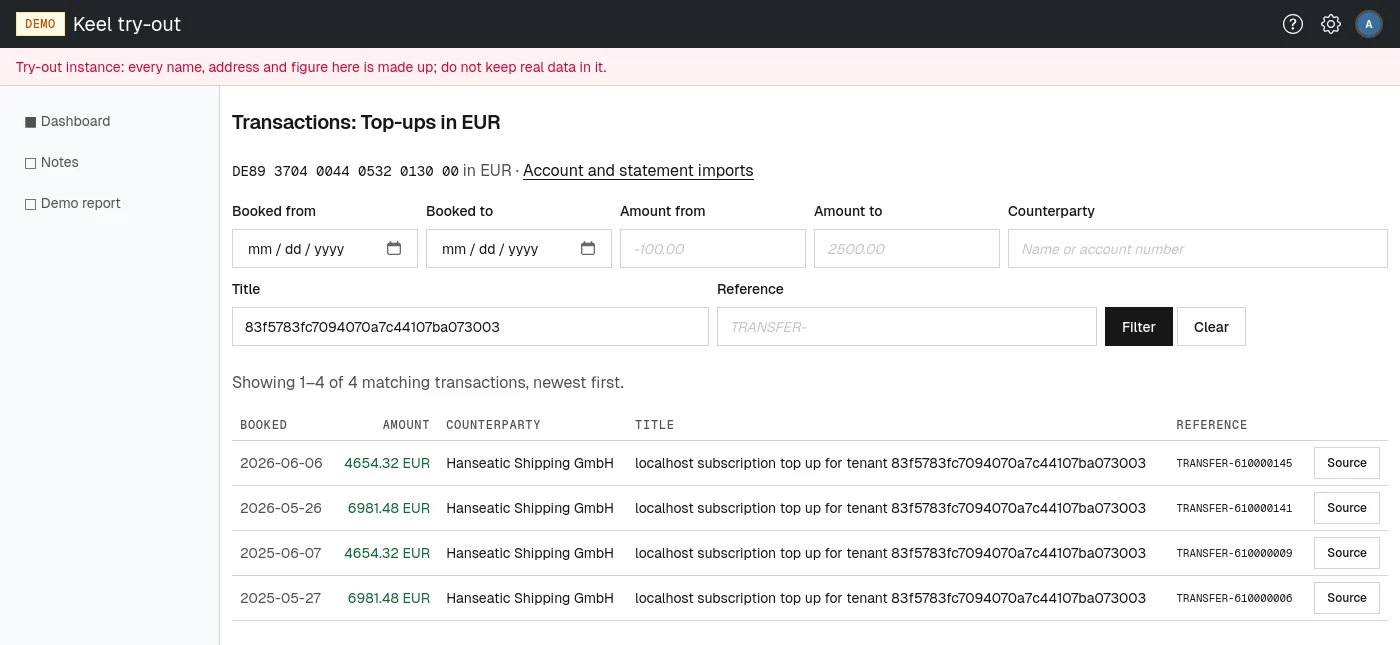
Choose Transactions beside an account, or on its page. The page Transactions: <name> lists every recorded transaction, newest first, 50 to a page, with Booked, Amount (incoming in green, with the bank's charges where there were any), Counterparty (name and account number), Title and Reference. Source opens the statement row as the bank wrote it, and which import recorded it, when and from which file.
To narrow the list, fill in any of the filter fields and choose Filter:
- Booked from and Booked to: booking dates;
- Amount from and Amount to: amounts in the account's currency, negative for outgoing payments, such as
-100.00; - Counterparty: part of the payer's name or account number;
- Title: part of the payment title, such as a tenant's public id;
- Reference: part of the bank's own reference for the transaction.
The line above the table says which rows are shown out of how many matching transactions. Page through with Newer and Older; the filter stays applied. Clear removes it.