How to set your organization's name, logo and time zone, and send its email through your own mail server.
For administrators who hold the permission manage configuration.
Each setting below is a row on the settings page (Configuration in the administration). For how saving, inheriting and clearing work, see Settings.
Tenant name
The name members know your organization by, shown in the header of every page beside the service's name. Without one, your organization is shown by its short address (its slug), such as hanseatic-shipping.
- Open Tenant name on the settings page.
- Type the name into Tenant name, such as your company or team name.
- Choose Save tenant name. Members see the new name from their next page view.
Tenant logo
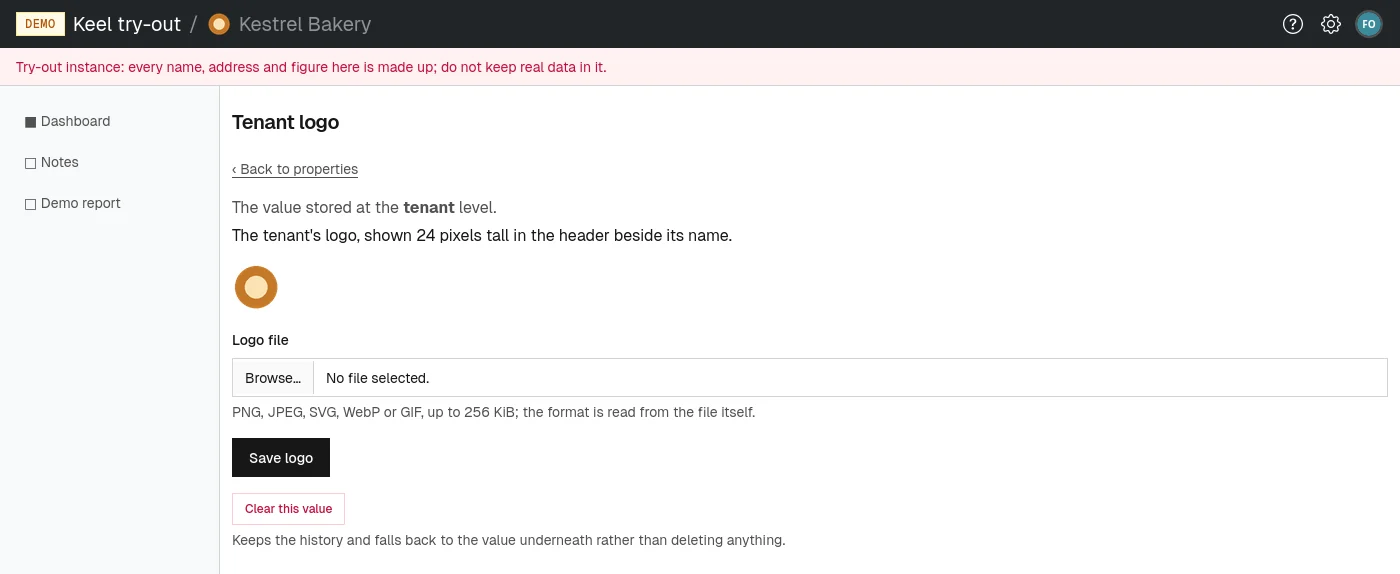
A small image shown 24 pixels tall in the header, beside your organization's name.
- Open Tenant logo on the settings page. If a logo is stored, it is shown above the field.
- Under Logo file, choose an image file: PNG, JPEG, SVG, WebP or GIF, up to 256 KiB.
- Choose Save logo. The header shows the new logo from the next page view.
To remove the logo, choose Clear this value.
Time zone
The zone in which pages show dates and times, including the end dates you type when granting a role. Every member sees this zone unless they choose their own on their profile (see Your profile). Changing it changes only how times are shown: nothing recorded is lost or moved.
- Open Time zone on the settings page.
- Pick a zone from Time zone, such as
Europe/Warsaw. - Choose Save time zone.
If you never set one, the site's zone applies.
Email carrier
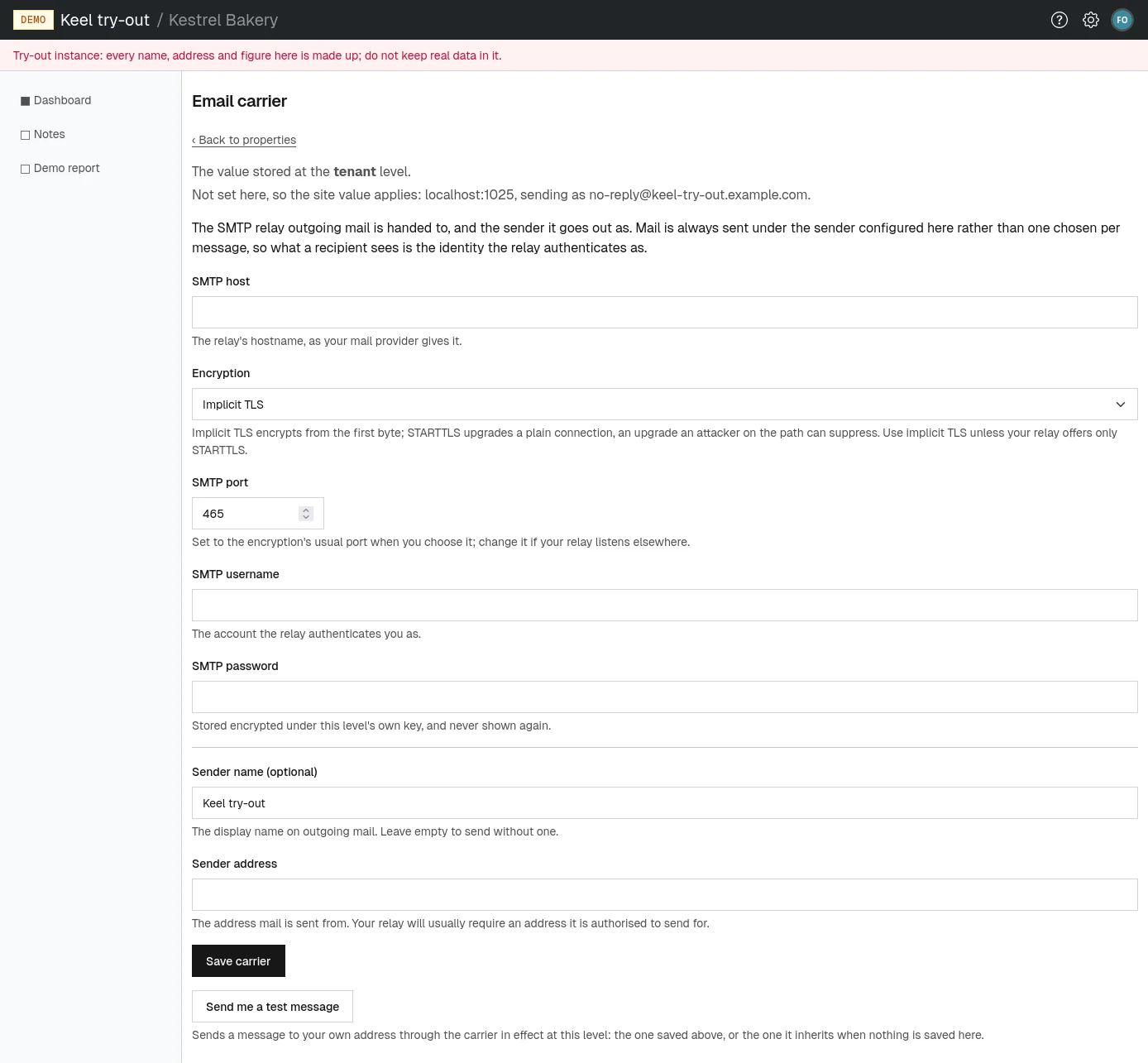
The mail server (an SMTP relay) through which Keel Platform sends your organization's email, such as password links and billing notices, and the sender those messages come from. If you set nothing, the site's mail server and sender are used. Set your own when you want messages to come from your own domain.
- Open Email carrier on the settings page.
- Fill in SMTP host, as your mail provider gives it.
- Choose Encryption: Implicit TLS (port 465) is the safer choice; use STARTTLS (port 587) only if your relay offers nothing else. SMTP port changes to the usual port for your choice; change it if your relay listens elsewhere.
- Fill in SMTP username and SMTP password. The password is stored encrypted and never shown again. Later, leave the field empty to keep the stored password, or type a new one to replace it; the help text says when and by whom it was last set.
- Optionally, fill in Sender name (optional), the display name on outgoing mail.
- Fill in Sender address. Your relay will usually accept only an address it is allowed to send for.
- Choose Save carrier.
- Choose Send me a test message. A message titled "Test message from" and the service's name is sent to your own address through the carrier now in force, and the page confirms "A test message was sent to" your address, or says why it failed. Check that it arrives.