How to set your first password, replace a forgotten one, or change it, using the link the service emails you.
For every member of a tenant that signs in with passwords. No permission is needed. If your organization signs in through an identity provider, you have no password here and this page does not apply.
Why passwords are set through an emailed link
Nobody types a password for you, and there is no "old password" field. Every password, the first one included, is set on a page that only opens from a link sent to your email address. Opening the link proves that the mailbox is yours, which is what your account is tied to.
The link works once and only for a short time (15 minutes, unless your service is set up differently). If someone else got hold of an old email, the link in it would already be useless.
Asking for a link from the login page
Use this when you have never had a password, or have forgotten it.
- Open your tenant's login page (see Choosing your tenant).
- Type your Email address. You can leave the password empty.
- Choose First time here, or forgot your password? Send me a password link. A page titled Check your email appears. It says that if an account exists for your address, a link is on its way, and how long the link is valid.
The page reads the same whether or not the account exists. That is deliberate: it stops strangers from using the page to learn who has an account. If no email arrives, check the address you typed and your spam folder.
Asking for a link from your profile
Use this to change your password while you are signed in.
- Open the account menu (your initials, top right) and choose Profile.
- Under Sign-in security, choose Email me a link to change my password (or Email me a link to set a password if you have none yet). A Check your email page confirms that the link is on its way to your address.
The email
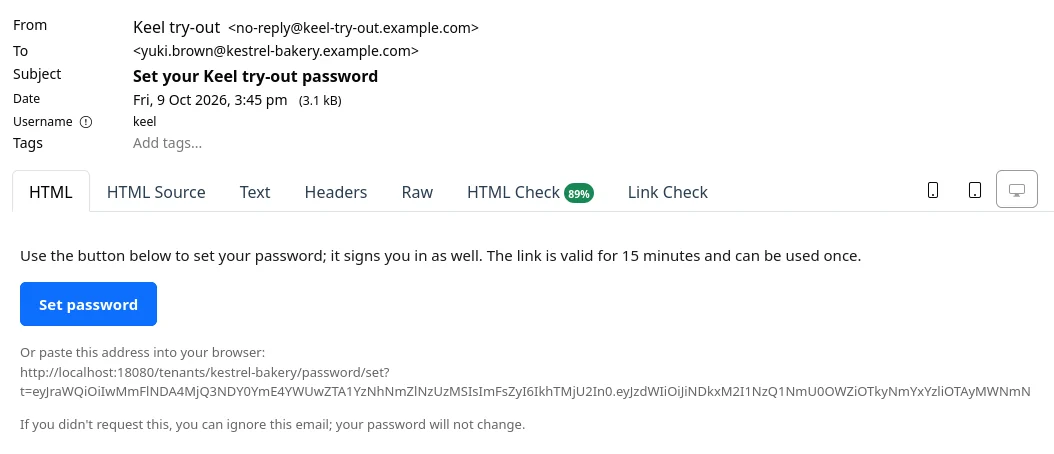
The email's subject is Set your followed by the service's name and password. It holds a Set password button, the same address as text in case the button does not work, and how long the link is valid. If you did not ask for it, ignore it: your password does not change.
Choosing the password
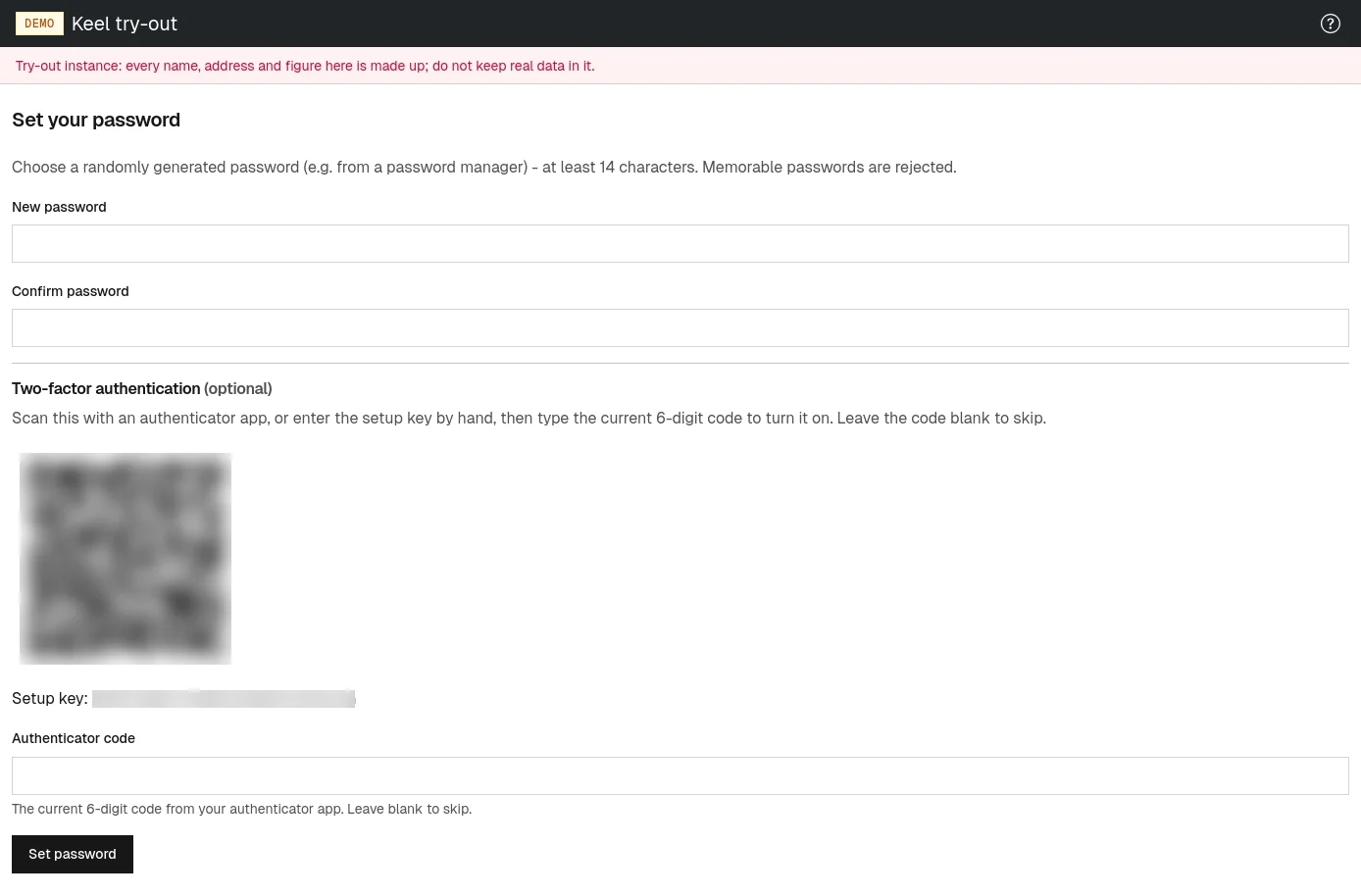
- Open the link from the email, or choose Set password. A page titled Set your password opens.
- Type the new password into New password.
- Type it again into Confirm password.
- Optionally, turn on two-factor authentication in the section below the password fields (see Turning on two-factor authentication). To skip it, leave Authenticator code empty.
- Choose Set password. Your password is saved, you are signed in, and your organization's dashboard opens.
The service accepts only passwords that look randomly generated, at least 14 characters long. A memorable password, such as a word with a few digits, is refused with That password is too predictable. The easiest way is to let a password manager generate and remember the password for you. If the two fields differ, you see The passwords do not match.
When the link has expired or was used
A link that is too old, or was already used, opens a page saying That set-password link is invalid or has expired. Nothing is wrong with your account. Choose Request a new one to go to your tenant's login page, and ask for a fresh link there as described above. If you have several such emails, use the newest.