How to create plans, set their status, arrange them into groups by drag and drop, and choose the plan trials run on.
For site operators with the manage service plans permission.
Plans and their terms
A plan is what tenants subscribe to, such as "Team, monthly". What a plan offers (its length, its daily users, its prices and its clocks) lives in its terms. A plan always has at least one version of terms, and changes are made by adding a new version: licenses keep the terms they were issued under. See Plan terms.
A plan has a slug, the short name in its address, and a public id, its permanent identity. The slug can be renamed; the public id never changes.
The plans page
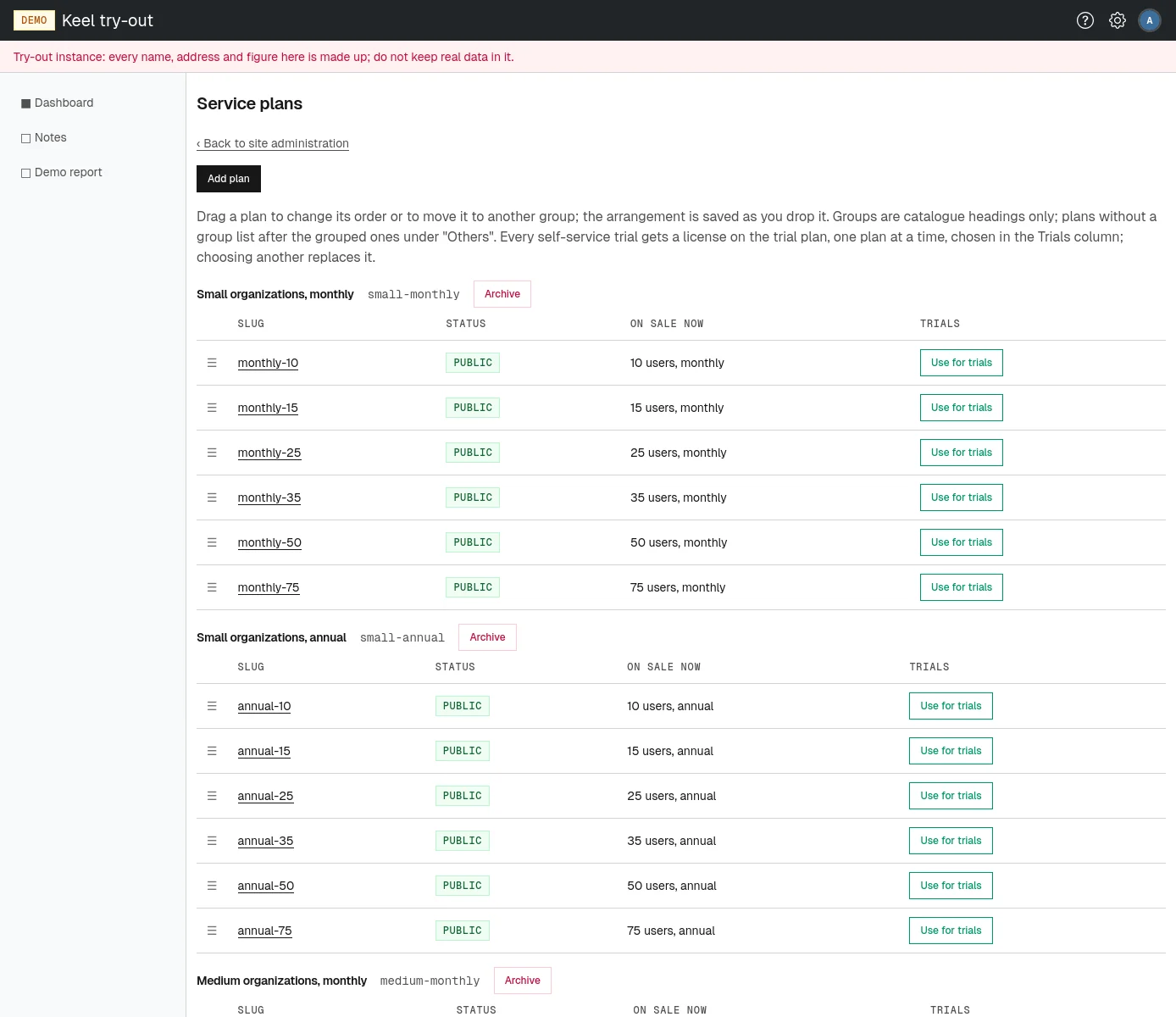
Open Service plans on the site administration page, or go to /site/admin/service-plans. Plans are listed under their group headings, with ungrouped plans last under "Others". Each row shows the plan's Slug, its Status, the terms On sale now (or "nothing on sale") and the Trials column.
Plan statuses
A plan's status decides who can get it. Status affects only new licenses: a license already issued stays valid when its plan changes status or is archived.
| Status | What it means |
|---|---|
| draft | Being prepared. No license can be issued on it. |
| private | Operators can issue it, but it is not listed in the public catalogue. Use it for custom deals or the trial plan. |
| public | On open sale: listed in the public catalogue at /service-plans, which anyone can read without signing in, and issuable by operators. |
| suspended | Issuing paused without retiring the plan. |
| archived | Retired for good. Its slug is freed for reuse and it cannot be brought back. |
Plans can move freely between draft, private, public and suspended. Only archived is final.
Adding a plan
- On the plans page, choose Add plan. The New service plan page opens.
- Type the Display name, such as "Team". The Plan slug is filled in from it; edit it if needed.
- Choose the Status: draft, private or public.
- Fill in the first terms: the sale window, summary, description, clocks, daily users allowance and pricing. Each field is explained in Plan terms.
- Choose Create plan.
The plan is created together with its first terms and placed among the ungrouped plans. The creation is recorded in the licensing audit log. A public plan with terms on sale appears in the public catalogue at once.
The plan page
Choose a plan's slug to open Plan: <slug>. From here you can:
- Change status: choose the new status and the button. Archiving asks for confirmation, because it cannot be undone.
- Rename slug: type the New slug and confirm. Addresses built on the old slug stop working.
- Use for trials or Stop using for trials: see The trial plan.
- See the group the plan is placed in. Move it on the plans page.
- See every version of its Terms, with the one on sale marked, and add New terms. See Plan terms.
Groups
Groups are headings in the catalogue, such as "Small organizations, monthly". They only arrange plans for display and have no effect on licenses or prices.
Adding a group
- At the bottom of the plans page, type the Group display name, such as "For teams". The Group slug is filled in from it; edit it if needed.
- Choose Add group.
The new group appears with "No plans yet; drag one here." Drag plans into it as described below.
Archiving a group
Choose Archive beside the group's heading and confirm. Its plans stay and are listed as ungrouped under "Others".
Arranging plans by drag and drop
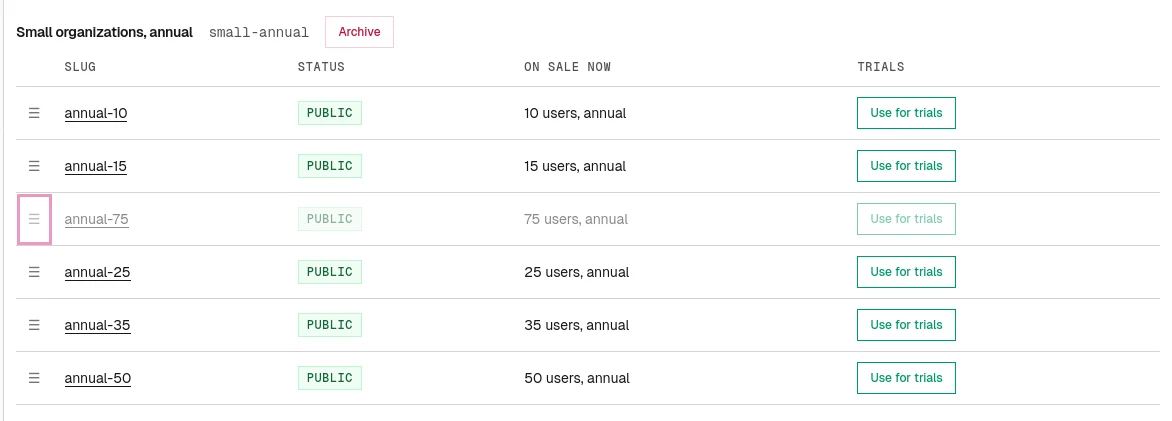
- Point at the handle (☰) at the start of a plan's row, press, and drag the row up or down. Drop it where it should go within its group, or onto another group's table to move it there.
- Release. The new order is saved as you drop it and the page reloads.
The catalogue shows the plans in the same order. If the arrangement cannot be saved, a message says why and the page returns to the stored order.