What a version of a plan's terms says, how to put new terms on sale, and how to adjust a sale window.
For site operators with the manage service plans permission.
Terms versions
A plan's terms state what a license on that plan gives and costs. Each version has a sale window: the period during which licenses are issued under it. A license is pinned to the version on sale when it was issued and keeps it for its whole life. So you never edit terms that are on sale; to change a price or an allowance, you put a new version on sale, and existing licenses carry on under the old one until they renew.
The windows of one plan's terms never overlap. New terms take over from the terms on sale at their start: the old window ends there.
What the terms say
These fields appear when you add a plan and when you add new terms.
- Display name
- The plan's name as sold, such as "Team". Later terms can rename the plan.
- On sale from, On sale until
- The sale window, in your time zone. For a new plan, an empty start means now. For new terms of an existing plan, an empty start means one minute from now, and an explicit start must be at least a minute ahead. An empty end keeps the terms on sale with no end.
- Summary
- One sentence, up to 250 characters, shown on the catalogue card when the plan is public.
- Description (HTML)
- The full text behind the card, shown as written on the public catalogue: up to 2000 characters of text with its markup, 4000 in all.
- A license covers
- How long a license issued under these terms lasts, between 1d and 100y, such as
1mor1y. - Renewal notice before it ends
- Between 1d and 92d, and shorter than the license. This long before a license ends, the renewal is examined, and the tenant's billing contacts are told when nothing, or not enough, stands behind it.
- Grace after it ends
- Between 0d and 100y. After the license ends, the tenant is lapsed and members can still sign in this long. Then the tenant is closed.
0dcloses it at once. - Data kept after closing
- Between 1w and 100y, counted from the closing. When it runs out, the tenant's database is dropped.
- Unique daily users allowance
- How many distinct users may start sessions in a day, from 1 to 999999. An unlimited plan states 999999. When the distinct users of the last 24 hours exceed the allowance by more than a tenth, new users are turned away until usage falls back, and the tenant's billing contacts get an email suggesting a larger plan. Users already active that day can keep signing in.
- Pricing
- Choose Free for a plan deliberately without prices, or Priced and list the Net prices, one per line: a currency code and a net amount in major units, such as
EUR 29.00. A tenant can only renew on a plan priced in its billing currency. An empty price list alone never makes a plan free.
Periods are typed as a number and a unit: d for days, w for weeks, m for months, y for years.
Putting new terms on sale
- Open the plan page and choose New terms. The page New terms of <slug> opens, filled in with the plan's current terms.
- Change what differs. Every field is the whole of the new terms, the description included.
- Set On sale from, or leave it empty to start in a minute.
- Choose Put the new terms on sale.
The new version goes on sale at its start, and the window of the terms on sale until then ends at that moment. Terms that begin later are left alone, so a window that would reach into them is refused. The change is recorded in the licensing audit log. Licenses already issued keep their terms; renewals from the start of the new window use the new terms.
The terms page
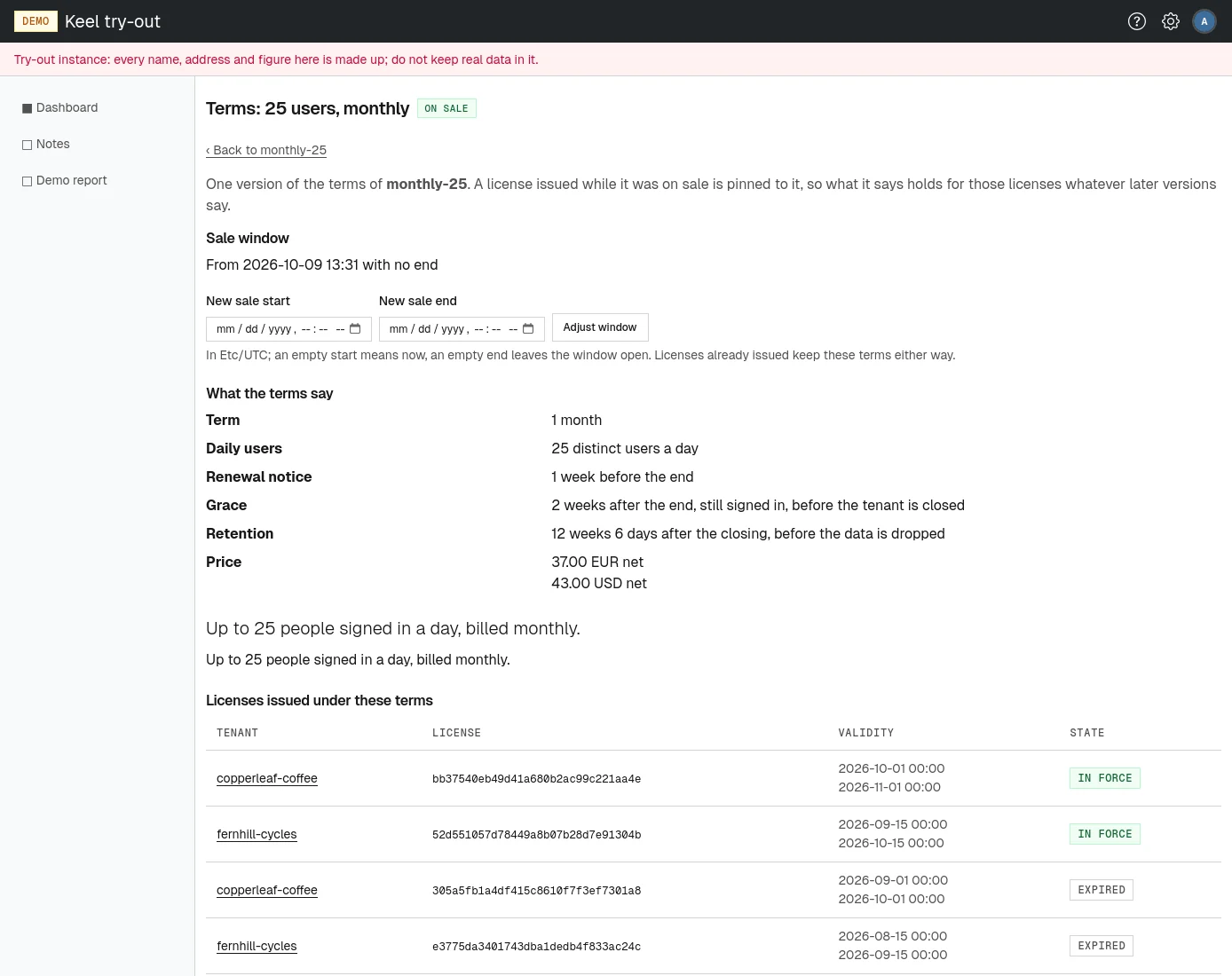
On the plan page, choose a version's name under Terms to open Terms: <name>. It shows:
- Sale window, with a form to adjust it;
- What the terms say: term, daily users, renewal notice, grace, retention, prices, summary and description;
- Licenses issued under these terms, with the tenant, validity and state of each, twelve to a page;
- History: what the licensing audit log recorded about this version, and who did it.
Adjusting a sale window
The content of terms is fixed once they are on sale, but their sale window can still change, for example to stop selling a version or to start a future one earlier.
- On the terms page, type the New sale start and New sale end, in your time zone. An empty start means now; an empty end leaves the window open.
- Choose Adjust window.
The window changes and the change is recorded in the licensing audit log. A window that would overlap another version's is refused. Licenses already issued keep these terms either way.