When the platform setup page is open, how to enter it with the setup token, and how it brings a new site into use or lets operators back in after they are locked out.
For whoever runs the site's servers and its first operators. No site permission is needed: the page is opened with the setup token.
When the page is open
The page at /platform-setup exists only while the service is started with a setup token (the KEEL_PLATFORM_SETUP_TOKEN setting of its environment), and only for a short window after each start: 30 minutes unless whoever runs the servers sets another length. Once the window has closed, the address answers "not found", exactly as if no token were set. To open it again, restart the service.
Anyone who has the token can change the site's configuration and its operators without signing in. Once setup or recovery is done, remove the token from the environment. While it is set, operators see a warning above every page.
In the try-out the token is printed in the container log, and the page is open for 30 minutes after each start of the container.
Entering the page
- Open
/platform-setup. The page Platform setup asks for the token and says until when it accepts it. - Type the Setup token.
- Choose Continue.
The browser keeps the token until the window closes, so you can come back to the page during the window without typing it again. "That is not the setup token." means the token was wrong. After too many wrong tokens from one address, the page asks you to wait a quarter of an hour.
The page then shows when it closes: save each part before then, because a change not saved by then is lost. Choose End the setup session when you are done. Every change made here is recorded in the core audit log as made by setup.
What the page holds
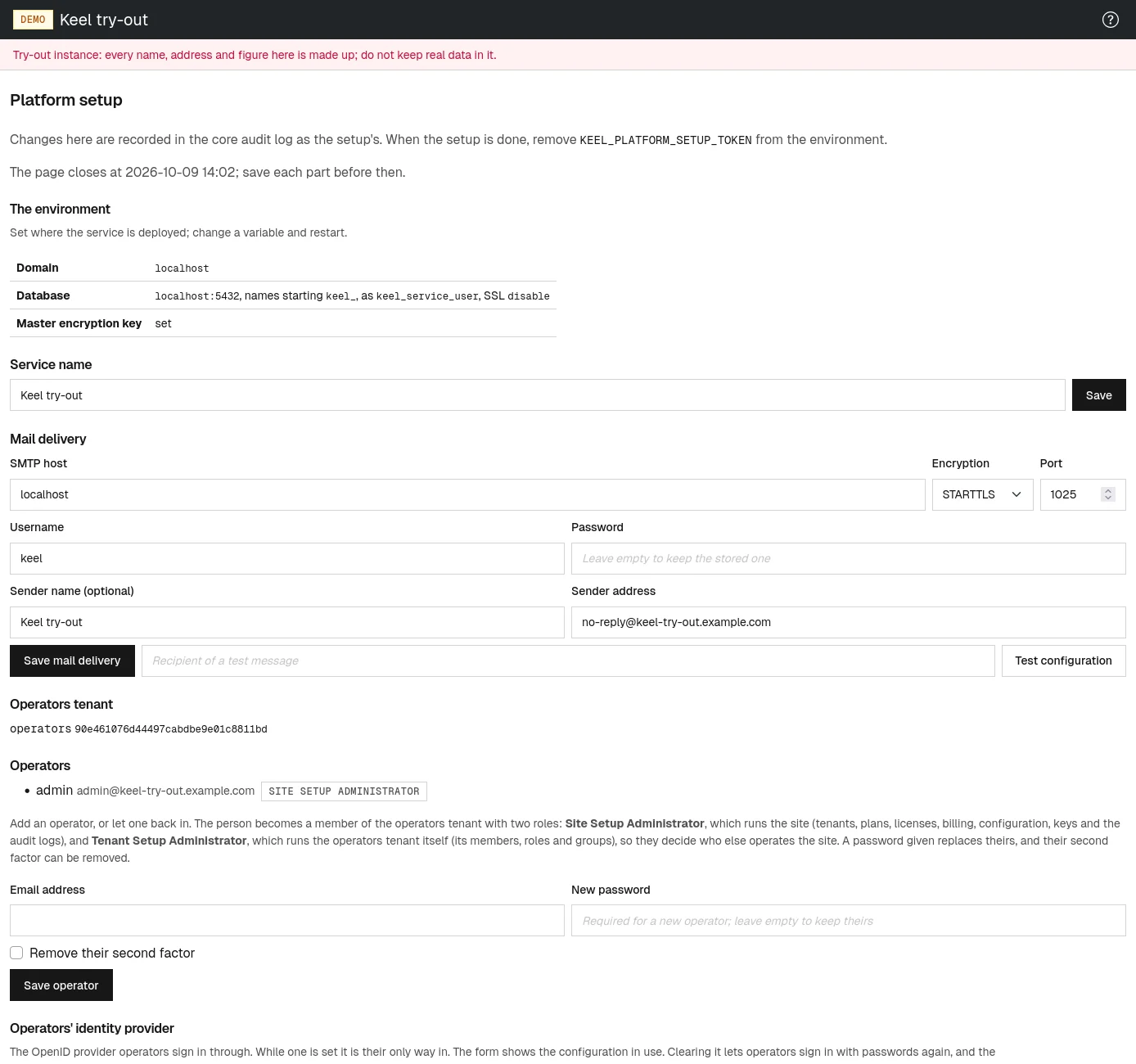
- The environment
- The domain, the database and whether the master encryption key is set, as the servers provide them. They are shown, not edited: change the environment and restart.
- Service name
- The name shown in page titles and mail. Choose Save.
- Mail delivery
- The mail server the site sends through: SMTP host, Encryption, Port, Username, Password (leave it empty to keep the stored one), Sender name (optional) and Sender address. Choose Save mail delivery. To check it, type an address as recipient and choose Test configuration. These are the same values as the Email carrier setting.
- Operators tenant
- On a new site: the organization that runs the service, by Name and Slug. Choose Create the operators tenant. It is chosen once and cannot be replaced later. See The operators tenant.
- Operators
- The current operators with their roles, and a form to add an operator or let one back in.
- Operators' identity provider
- The single sign-on provider operators sign in through, if any, with the same fields and Test sign-in as a tenant's identity provider page, and Clear the identity provider.
Setting up a new site
- Save the Service name.
- Fill in and save Mail delivery, then send a test message to yourself with Test configuration.
- Create the operators tenant.
- Add the first operator: type their Email address and a New password, and choose Save operator.
- Choose End the setup session, and ask whoever runs the servers to remove the setup token.
The first operator becomes a member of the operators tenant with two roles: Site Setup Administrator, which runs the site, and Tenant Setup Administrator, which runs the operators tenant itself, so they decide who else operates the site. They sign in to the operators tenant with the password given. Next, set the seller, the operations emails and the billing emails, register a bank account, add the VAT rules for the countries you sell to, and create your plans.
Letting operators back in
When no operator can sign in any more, ask whoever runs the servers to set the setup token again and restart the service. Then, within the window:
- To reset an operator's password, type their Email address and a New password, and choose Save operator. The password given replaces theirs.
- To remove an operator's second factor (a lost authenticator app), type their email address, tick Remove their second factor, and choose Save operator. Leave the password empty to keep theirs.
- To add a new operator, type a new email address and a password, and choose Save operator.
- When the operators' identity provider is broken, for example unreachable or with an expired client secret, fix it and test it, or choose Clear the identity provider. While a provider is set, a password opens nothing for operators. Clearing is final: operators sign in with passwords again, so give one above to whoever needs it.
Saving an operator always gives them both setup roles. Remove the token again when you are done.
To let someone back into a customer's tenant instead, see Letting people back into a tenant.