How to compare the plans on sale and start a free trial organization of your own, from the email address to your first sign-in.
For anyone considering the service. You need no account: these pages are public.
The front page
The service's front page, at /, belongs to the product built on Keel Platform, so its look differs from product to product. It offers three ways in: Try it (start a free trial), See the plans, and Log in for people who already belong to an organization.
Comparing the plans
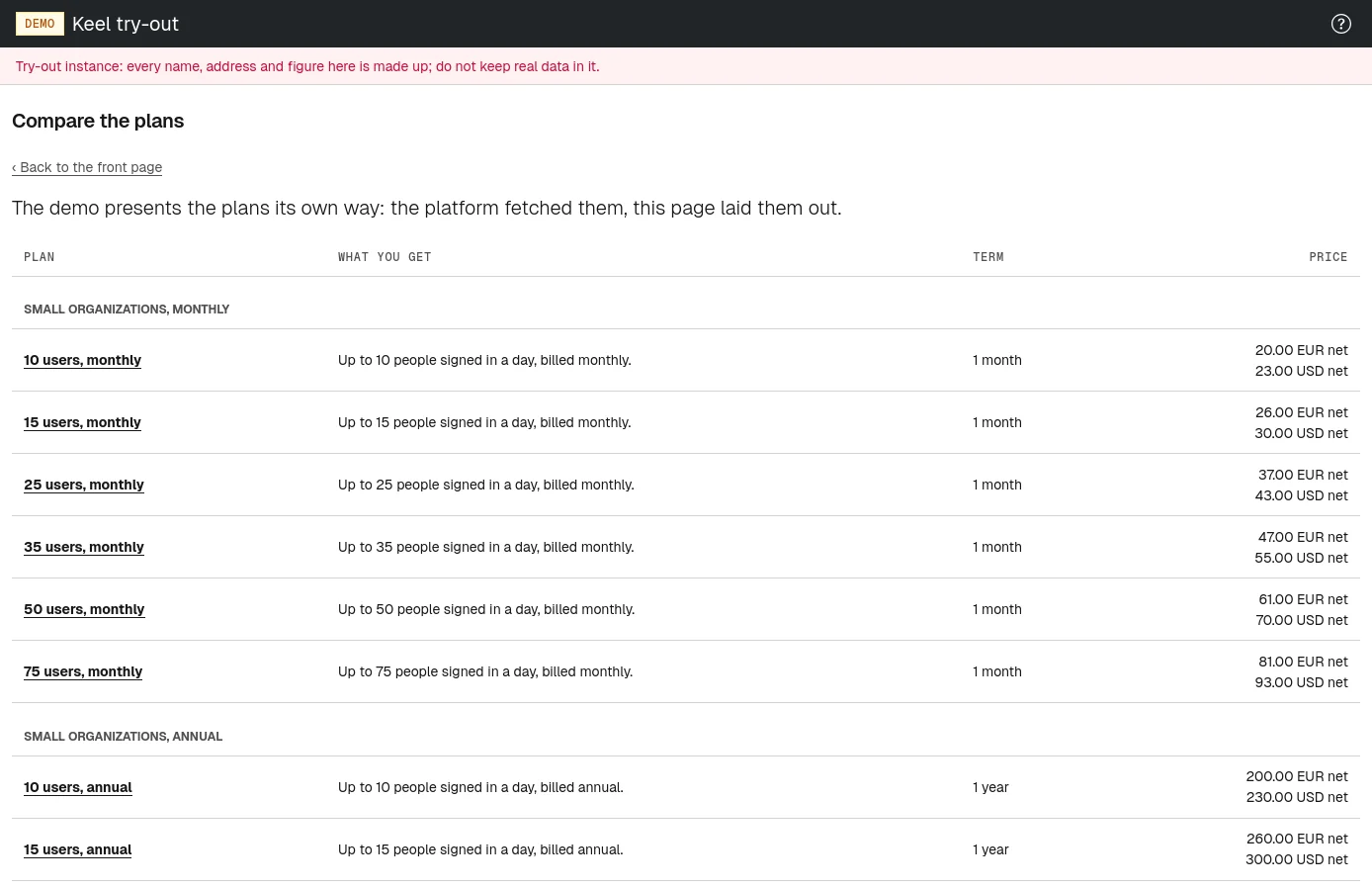
Choose See the plans, or open /service-plans. The page lists every plan on sale now, grouped under headings when there are several groups. For each plan it shows the name, a short summary of what you get, how long one term lasts, and the price before tax in each currency it is sold in (or Free). The trial is not one of the plans listed: when the service offers one, the page has a Start a free trial button instead.
Keel Platform's own page shows each plan as a card under the title Service plans. A product may lay the same plans out its own way; the demo application, for example, shows one table titled Compare the plans.
Choose a plan's name to open its page with the full terms:
- Term
- How long one purchase lasts.
- Daily users
- How many different people may sign in on one day. Signing in is refused when an organization goes more than a tenth over this number.
- Renewal notice
- How long before the end of a term the renewal is looked at, and the organization is told if nothing, or not enough, has been paid to cover it.
- Grace
- How long after the end of a term members can still sign in before the organization is closed.
- Retention
- How long a closed organization's data is kept before it is deleted.
- Price
- The price before tax, per currency, or Free.
Below these come the plan's summary and full description. Back to the service plans returns to the list.
How the free trial works
When the service offers a trial, you can create a trial organization yourself, without waiting for anyone to approve it. It takes four steps:
- You give an email address.
- You open the link emailed to that address.
- You name your organization and choose a password. Meanwhile your browser does a short piece of work that keeps automated sign-ups out.
- Your organization is created, with you as its first member and a trial license in force, and you sign in.
How long the trial lasts is up to the service. Once your organization exists, its billing page shows when the trial license ends.
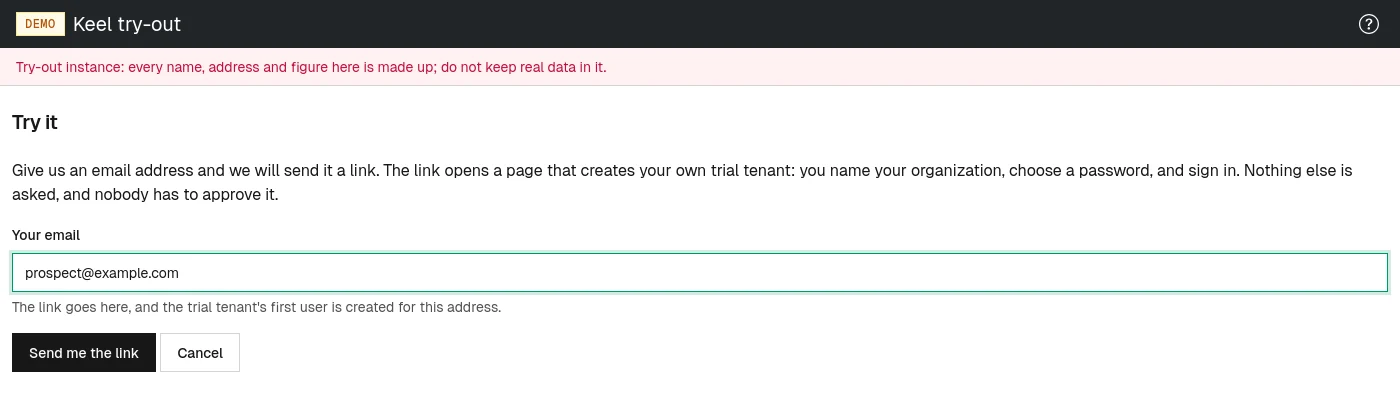
Asking for the trial link
- Choose Try it on the front page, or Start a free trial on the plans page. The Try it page opens at
/trial. - Type your address into Your email. The link goes there, and your organization's first account is created for this address, so use the one you will sign in with.
- Choose Send me the link. A Check your email page appears, saying the link is on its way if your address can receive mail.
Messages you may see on the Try it page:
- That was quick. Please look the address over once more and send it again. The form was sent within a few seconds of opening it. Check the address and send it again.
- A message that the domain of your address cannot receive mail: check the part after the
@for typing mistakes. - Too many trial requests from your network address. or Too many trial requests name this email address.: too many requests in a short time. Look in your inbox for a link already sent, or try again later.
The link in your inbox
The email's subject is Your followed by the service's name and trial. It holds a Create my trial button, the same address as text, and how long the link is valid (24 hours unless the service is set up differently). If you did not ask for it, ignore it: nothing is created unless the link is used.
Nothing arrived? Check the spam folder, then ask for the link again from the Check your email page.
Creating your trial organization
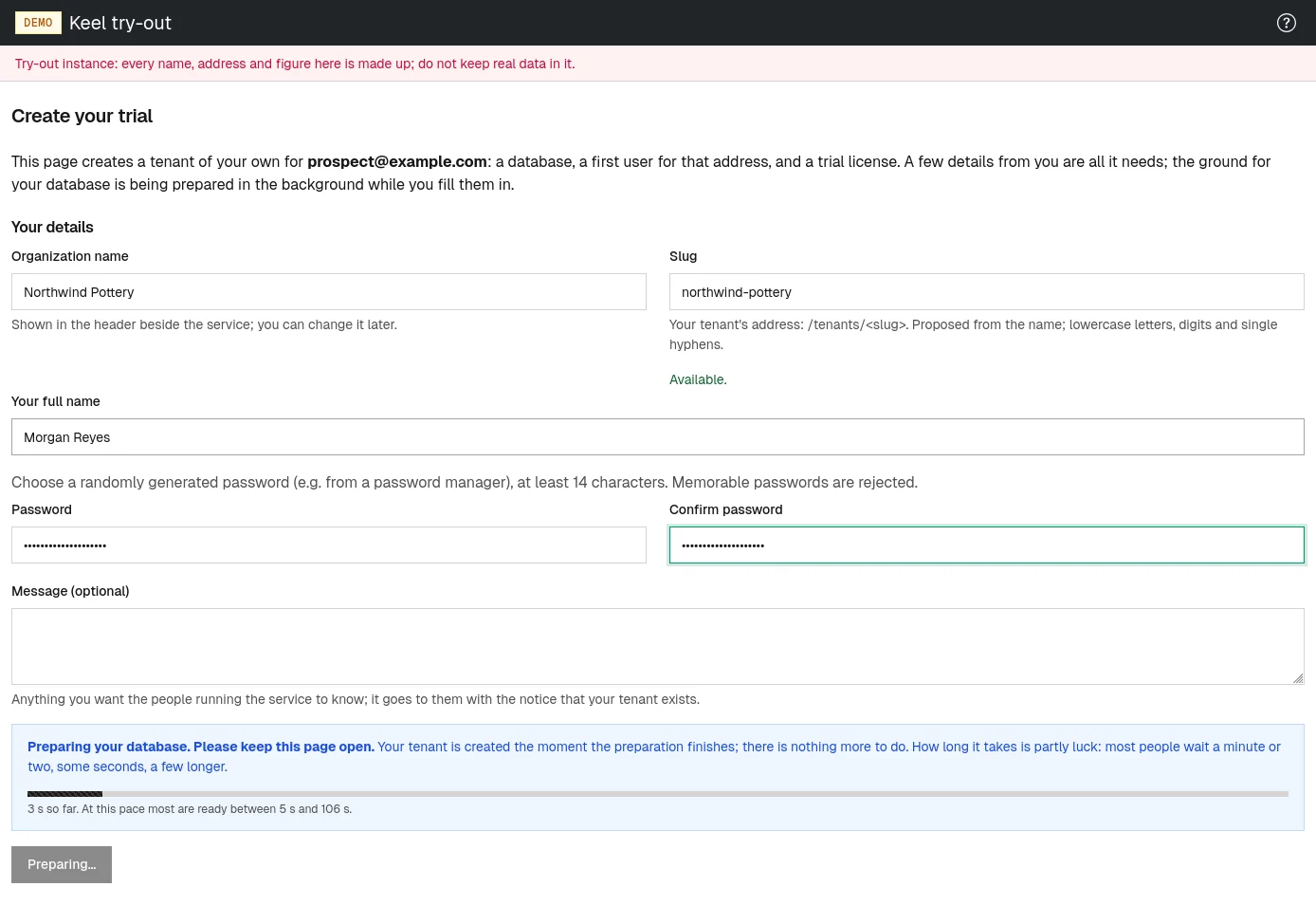
- Choose Create my trial in the email. The Create your trial page opens. Keep it open: from this moment your browser prepares your organization in the background.
- Type your Organization name. It appears in the header beside the service's name, and you can change it later.
- Check the Slug, which is proposed from the name. It becomes your organization's address,
/tenants/<slug>, so pick something short. It may contain lowercase letters, digits and single hyphens. Below the field you see Available., or Not available: and the reason, for example already taken. - Type Your full name.
- Choose a Password and type it again into Confirm password. As on every password page, it must look randomly generated and be at least 14 characters long; a password manager makes this easy.
- Optionally, write a Message (optional) to the people running the service. It reaches them with the notice that your organization exists.
- Choose Create my tenant. If your browser has finished its preparation, your organization is created at once and the Your trial is ready page appears.
If the preparation is still running when you choose Create my tenant, the button changes to Preparing... and a box appears: Preparing your database. Please keep this page open. A progress bar and a line such as how many seconds have passed and when most people are done follow it. How long it takes is partly luck: most people wait a minute or two, some only seconds. When it finishes, your organization is created by itself; you do not need to choose the button again.
Your trial is ready
The Your trial is ready page names your organization and gives its login address, /tenants/<slug>/login. Choose Sign in and log in with your email address and the password you just chose (see Signing in). Bookmark the login address: it is the one you share with colleagues.
An email with the subject of your organization's name followed by is ready on and the service's name arrives too. It holds the same Sign in link.
Two things are worth doing early:
- Add a second person who can manage access, so the organization does not depend on you alone. See the administrator part on people.
- Pick a subscription from the plans on offer before the trial runs out. See the administrator part on billing.
If the link does not work
- This link is not valid
- The link is wrong or has expired. Choose ask for a fresh one and start again at
/trial. - Already created
- Your organization already exists from this link. The page shows its login address; sign in with your email address and the password you chose.
- Something went wrong
- Creating your organization failed on the service's side. The people running it have been told. Your browser's preparation is kept, so opening your link again later retries without waiting again.