How to find a tenant, add and provision a new one, read its status, and change its status and slugs.
For site operators with the manage tenants permission. Issuing licenses also needs manage licenses, and invoices need manage site billing.
The tenant list
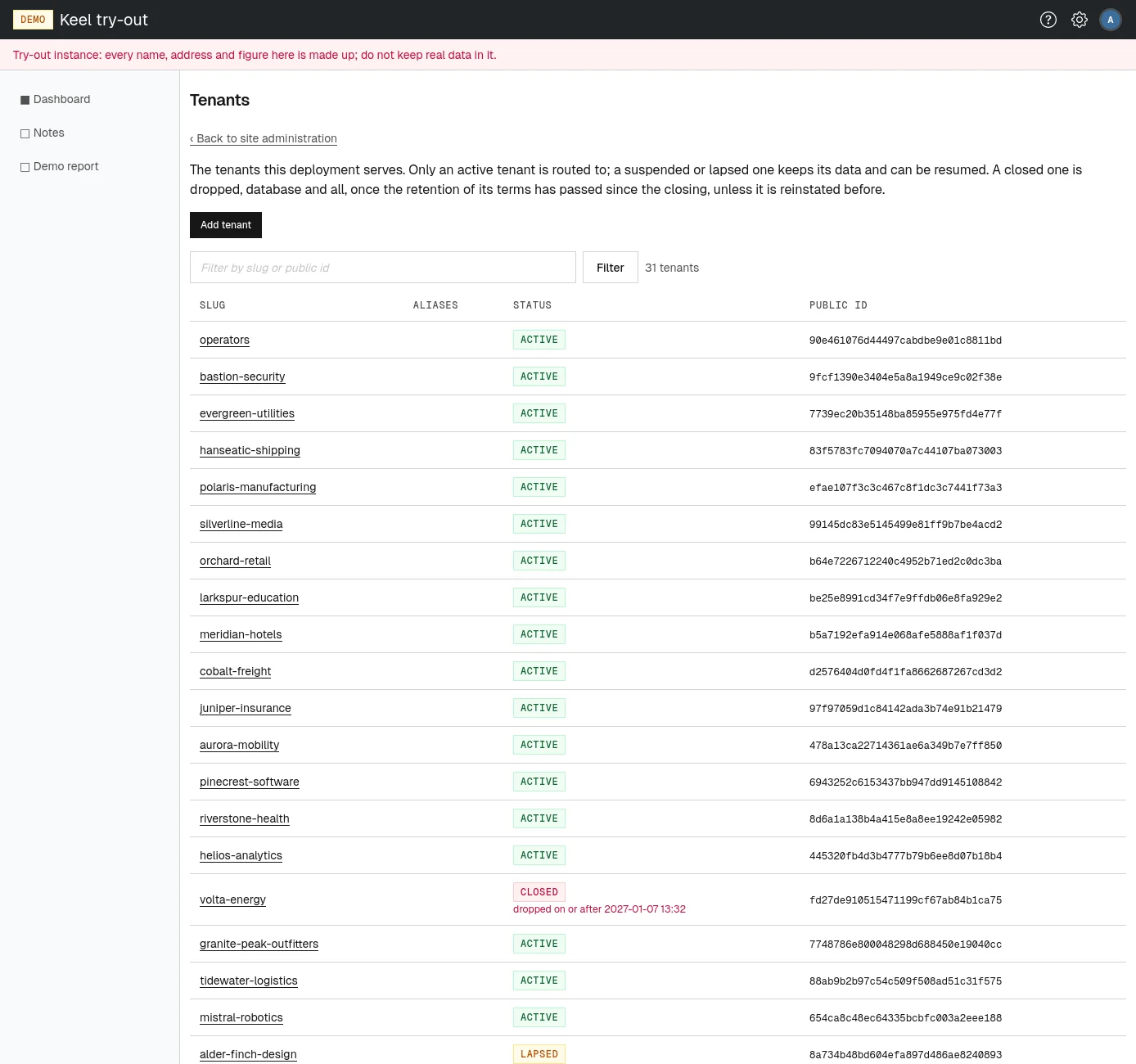
Open Tenants on the site administration page, or go to /site/admin/tenants. The list shows 50 tenants to a page, with:
- Slug: the tenant's canonical slug, which opens the tenant page.
- Aliases: the tenant's other slugs, which lead to the same tenant.
- Status: see Tenant statuses. A closed tenant also says when its data will be dropped.
- Public id: the tenant's permanent identifier. It never changes, even when the slugs do, and it is the code customers put in the title of a bank transfer.
To find a tenant, type part of its slug or public id into Filter by slug or public id and choose Filter. The number of matching tenants shows beside the button. Move through the pages with Previous and Next below the table; the filter stays applied.
Tenant statuses
A tenant's status decides whether its members can sign in. Most changes happen on their own, driven by the tenant's licenses: an hourly check moves each tenant to the status its licenses call for. Operators place and lift holds, close tenants and reinstate them.
| Status | What it means for the tenant's members | How a tenant gets there |
|---|---|---|
| provisioning | Nobody can sign in. The tenant is in the directory but not ready yet. | Adding a tenant whose provisioning stopped halfway. |
| active | Members sign in normally, within the daily users their license allows. | Provisioning; a license coming into force; an operator choosing Resume. |
| lapsed | The license has ended, but members can still sign in until the grace period of the plan's terms is over. Then the tenant is closed. A renewal or a new license makes it active again. | Automatically, when the license ends with nothing to follow it. |
| suspended | A hold with no end: nobody can sign in until an operator resumes it. Data, licenses and slugs stay as they are. The service never lifts a hold on its own. | An operator choosing Suspend or Reinstate. |
| closed | The relationship has ended. Nobody can sign in. The tenant's database is dropped once the retention period of its last license's terms has passed since the closing, unless an operator reinstates it first. | Automatically, when the grace period runs out; or an operator choosing Close. |
| dropped | The tenant's database is gone and its slugs are free for others. Only the directory entry and the audit trail remain. Nothing can be reinstated. | Automatically, when the retention period after closing has passed. |
Every status change sends an email, Tenant <slug> is now <status>, with the reason and what the change means. It goes to the site's operations emails, and, for every change except the drop, to the tenant's members who manage billing and to the tenant's billing address.
Adding and provisioning a tenant
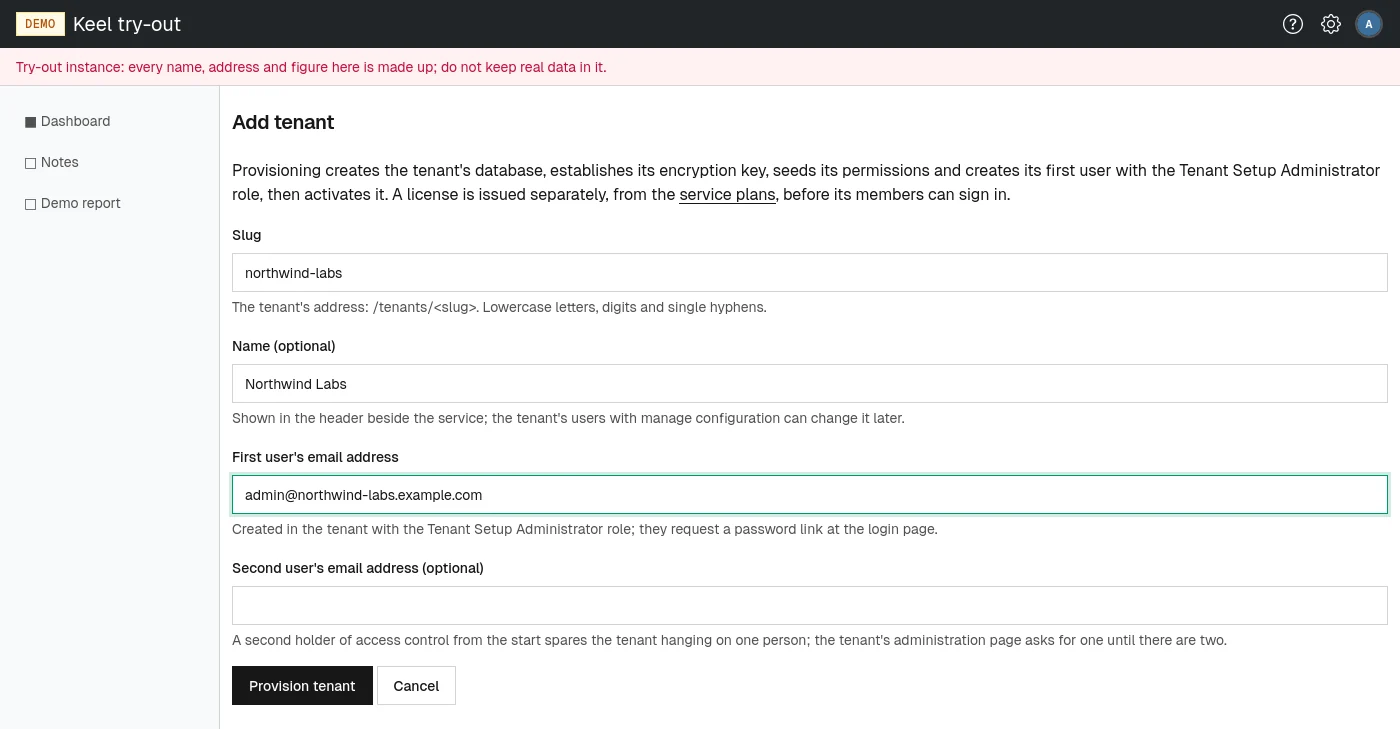
- On the tenant list, choose Add tenant. The Add tenant page opens.
- Type the Slug: the tenant's address,
/tenants/<slug>, in lowercase letters, digits and single hyphens. - Optionally type a Name, shown in the header beside the service name. The tenant's own administrators can change it later.
- Type the First user's email address. This person is created in the tenant with the Tenant Setup Administrator role.
- Optionally type a Second user's email address. A second holder of access control spares the tenant depending on one person; the tenant's administration page keeps asking for one until there are two.
- Choose Provision tenant. The service creates the tenant's database, establishes its encryption key, seeds its permissions and creates the first user (and the second, if given), then makes the tenant active.
The tenant page opens with the message The tenant <slug> is provisioned and active and the login address the first user can use once a license is issued. No email is sent: the first user signs in by requesting a password link on the tenant's login page. See Setting your password in the member part.
When provisioning stops halfway
If something fails during provisioning, the page says Provisioning stopped: followed by the cause. The tenant stays in the list with the status provisioning. Once the cause is fixed, open the tenant page: it shows Finish provisioning with the same fields. Fill them in again and choose Finish provisioning. The service creates or adopts what is missing and makes the tenant active.
The tenant page
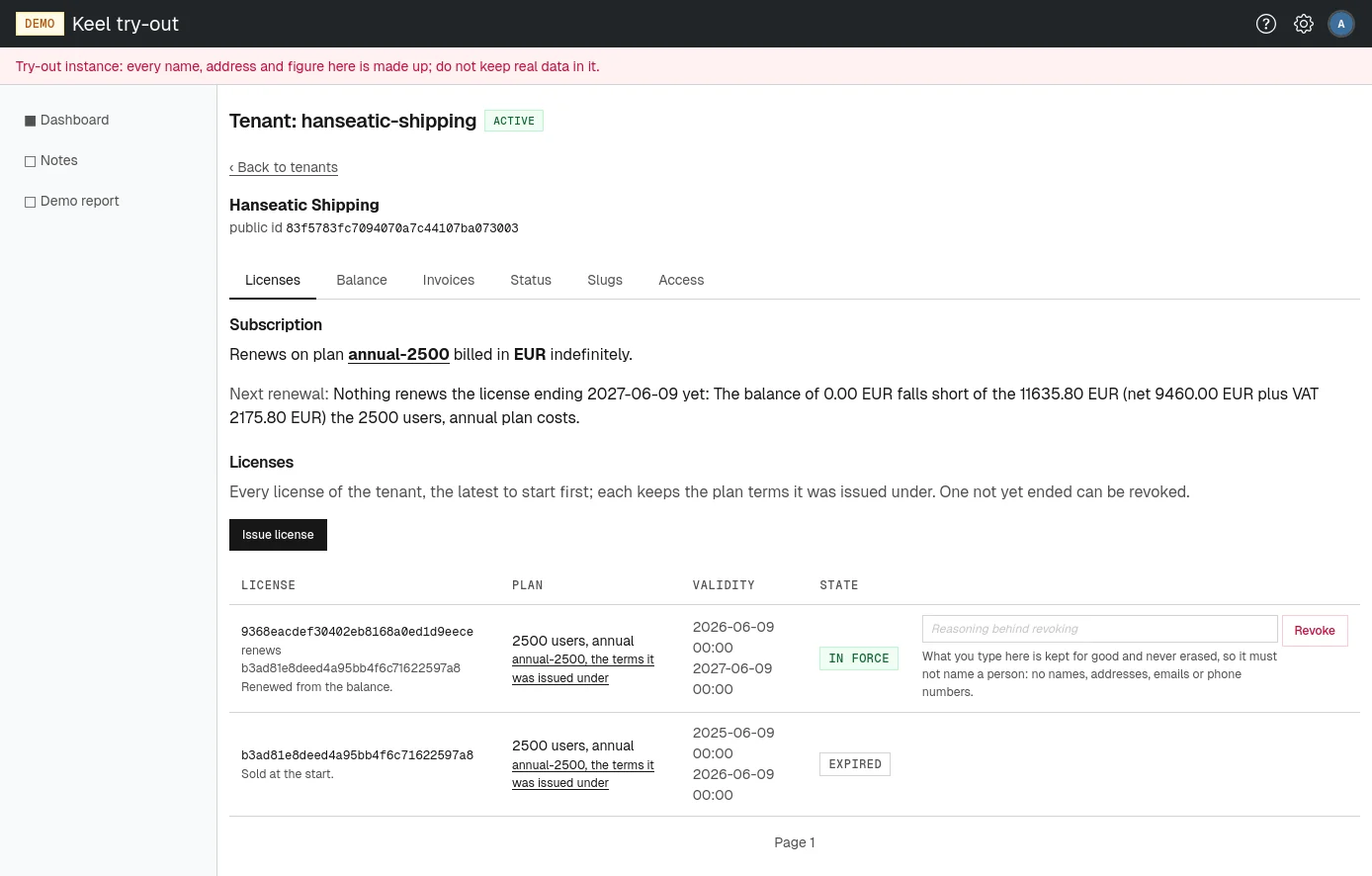
Choose a slug in the list to open the page Tenant: <slug>. Its status badge sits beside the heading. Below the heading you see:
- the tenant's name, if it has one, and its public id;
- since when it has its status, who set it (an operator's email address, or the system) and the reason given;
- a warning when the tenant's VAT situation will stop its next renewal, with a link See the buyer to the invoices tab;
- for a closed tenant, the date on or after which its database will be dropped.
The rest of the page is organized in tabs:
- Licenses: the renewal subscription and every license. See Licenses.
- Balance: the prepaid balance and its statement. See Balance, invoices and corrections.
- Invoices: the buyer and the invoices issued. See Balance, invoices and corrections.
- Status: holds, closing and reinstating, described below.
- Slugs: the canonical slug and aliases, described below.
- Access: letting someone back in, and the tenant's identity provider. See Letting people back into a tenant.
A dropped tenant has no tabs: the page only says that its database was dropped and nothing can be reinstated.
Changing a tenant's status
The Status tab lists the changes you can make from where the tenant stands. Each has a button, a reason field and a sentence on what it does. A change that is not possible right now is greyed out with the reason in red.
| Button | Offered when the tenant is | What it does |
|---|---|---|
| Suspend | active or lapsed | Places a hold: nobody can sign in until an operator resumes it. |
| Resume | suspended | Members can sign in again. Only possible while a license is in force; otherwise issue one first. |
| Close | active, lapsed or suspended | Ends the relationship: nobody can sign in, and the database is dropped on the date shown, unless the tenant is reinstated before. |
| Reinstate | closed | Stops the countdown to the drop and holds the tenant as suspended, with no end. An operator then resumes it once a license is in force. |
- Open the tenant page and choose the Status tab.
- In the reason field of the change you want, type why. The reason is shown beside the status and sent with the notice email. It is kept for good, so it must not name a person: no names, addresses, emails or phone numbers.
- Choose the button. For Close, confirm in the dialog.
The status changes at once, the change is recorded in the core audit log, and the status email goes out as described under Tenant statuses.
The operators tenant offers every status change greyed out: it hosts the site's operators, so its status never changes.
Slugs and aliases
A tenant can have several slugs. The canonical slug builds the tenant's addresses; the others are aliases that lead to the same tenant. The Slugs tab lists them with buttons:
- Add alias: type a new slug in New alias and choose the button. The slug must be free and use lowercase letters, digits and single hyphens.
- Make canonical: makes an alias the canonical slug. Addresses built on the old canonical slug keep working, because it stays as an alias.
- Decommission: retires a slug. Links using it stop working and the name is free for others again. If you decommission a tenant's last slug, the tenant is addressed by its public id until it gets a slug again.
Each change asks for confirmation and is recorded in the core audit log.