What the pages of the demo application shipped with Keel Platform show a member: its dashboard, the notes page and the demo report.
For members of a tenant on a site running the demo application, such as the Keel try-out. The notes page is open to every member; writing a note and the demo report each need a permission, given through a role.
Recognizing the demo
The demo has its own frame around every page: a dark header with a yellow demo badge before the service's name, and a footer saying Demo, built on keel. Its front page is titled Welcome to the demo, with Try it, See the plans and Log in buttons.
Demo dashboard
After you sign in, the Demo dashboard says whom you are signed in as and in which tenant. If you may see the demo report, it offers Open the demo report; otherwise it says that the report needs the view demo report permission, which a member who manages roles can grant.
The left menu lists Dashboard, Notes and, if you may see it, Demo report.
Notes
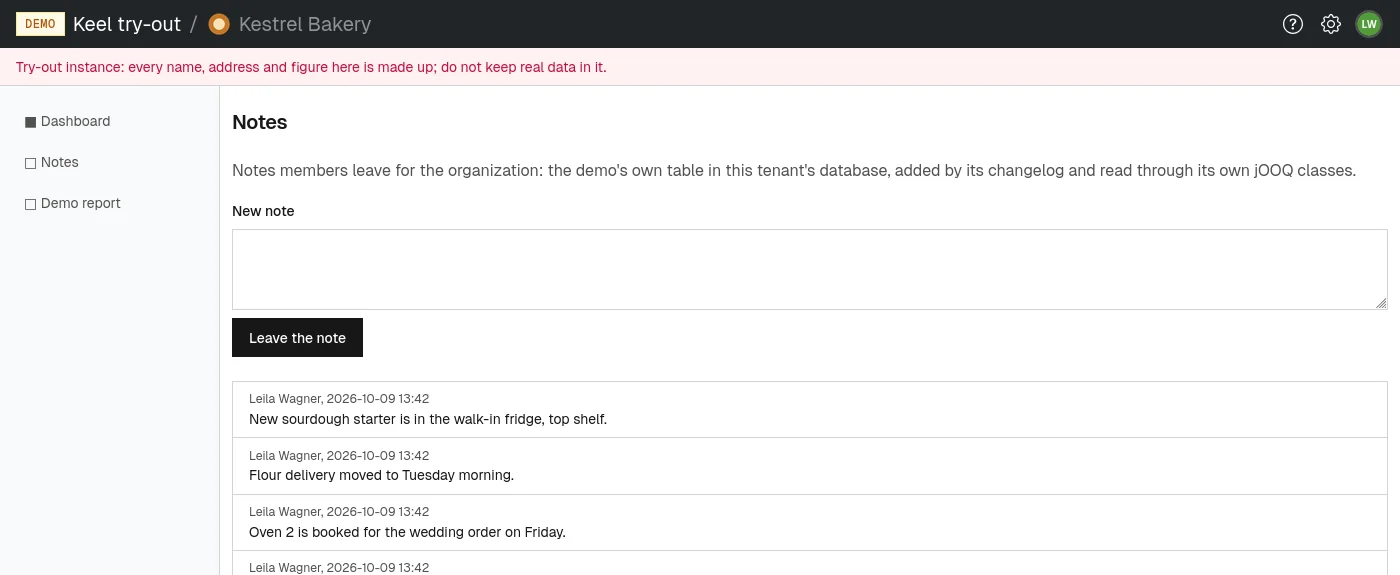
The Notes page holds short notes members leave for the whole organization. Every member can read them; the newest come first, each with its author's name and when it was written. An author who has left the organization is shown as a former member.
To leave a note (this needs the write demo notes permission):
- Choose Notes in the left menu.
- Type your text into New note (up to 2000 characters).
- Choose Leave the note. The page reloads with your note in the list.
Without the permission, the page says Leaving a note needs the write demo notes permission. and shows only the list. How many notes the page shows is a setting of your organization.
Demo report
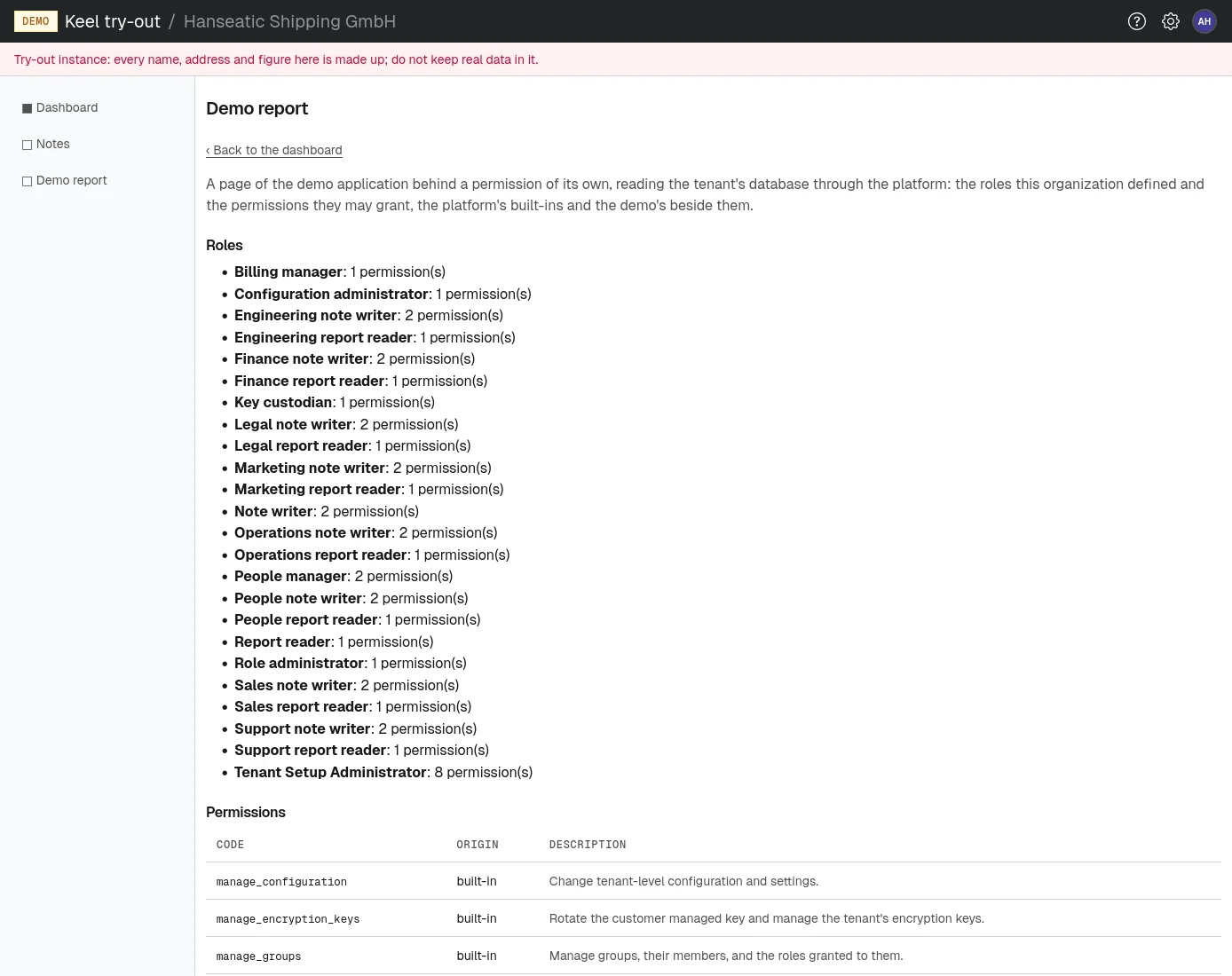
The Demo report needs the view demo report permission. Open it from the left menu, from the dashboard, or from the settings menu. It lists:
- Roles: the roles your organization has defined, each with how many permissions it holds;
- Permissions: every permission a role can grant, with its Code, its Origin (built-in or custom) and a Description.
Back to the dashboard returns to the dashboard. Opening the report without the permission shows Access denied.
About the demo
A public page at /demo/about, titled About the demo, explains briefly that it is a public page of the demo application. It holds nothing you need for your work.