How to protect your account with a 6-digit code from an authenticator app on your phone, and what to do if you lose the phone.
For every member of a tenant that signs in with passwords. It is optional. If your organization signs in through an identity provider, two-factor authentication is handled there instead.
What it does
With two-factor authentication turned on, signing in needs two things: your password and a 6-digit code that an authenticator app on your phone shows. The code changes every 30 seconds. Someone who learns your password still cannot sign in without your phone.
Any common authenticator app works, for example the ones from Google, Microsoft, or a password manager that shows codes.
Turning on two-factor authentication
You turn it on while setting your password, on the same page. If you already have a password, ask for a link to change it first: on your profile, under Sign-in security, choose Email me a link to change my password.
- Open the set-password link from your email. The Set your password page opens.
- Fill in New password and Confirm password (see Choosing the password).
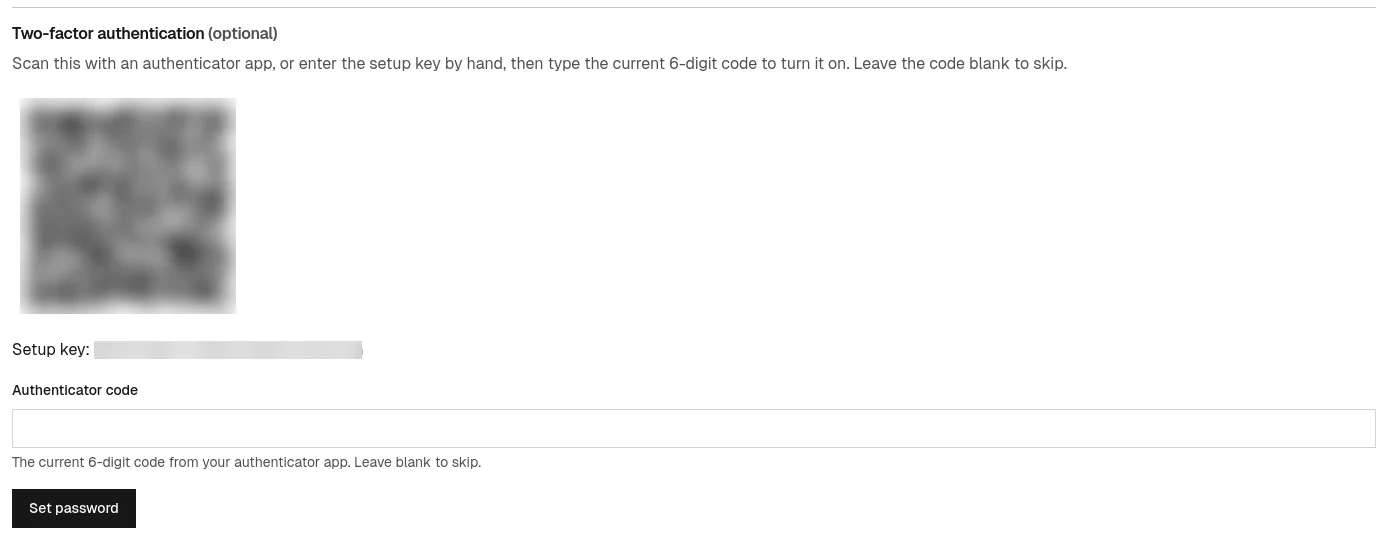
- In the section Two-factor authentication (optional), open your authenticator app, add a new account, and scan the square QR code with the phone's camera. If you cannot scan, type the Setup key shown under the code into the app instead. The app adds an entry named after the service and your email address, and starts showing 6-digit codes.
- Type the code the app shows now into Authenticator code.
- Choose Set password. Your password is saved, your authenticator is turned on, and you are signed in.
If you see That authenticator code is incorrect. Enter the current one and try again., nothing has been saved yet and the link is still good. Type the code currently on the screen and choose Set password again. Check that your phone's clock is set automatically; a clock that is off by more than about half a minute gives codes the service does not accept.
Afterwards your profile shows Authenticator app as enabled.
Signing in with a code
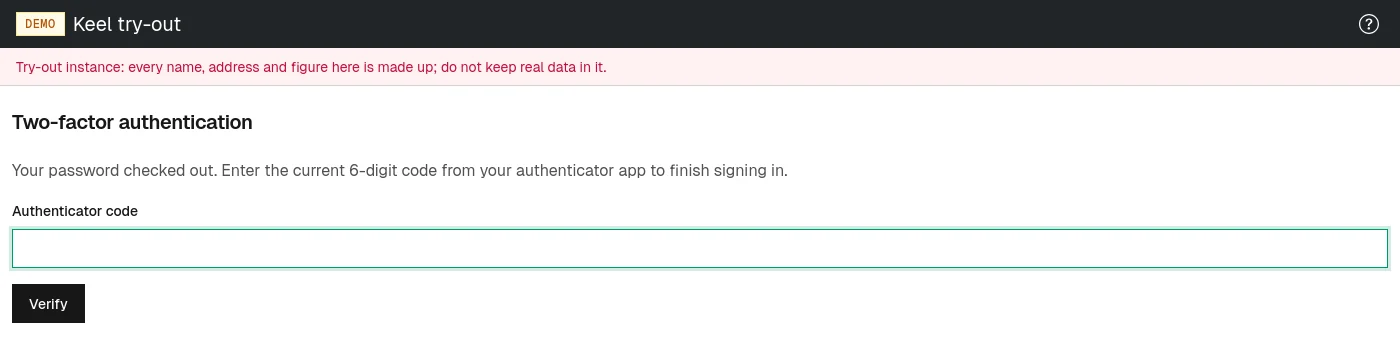
From now on, after you type your password and choose Log in, the Two-factor authentication page asks for the Authenticator code. Type the code your app shows and choose Verify. Signing in has the details.
A new phone, or a lost one
If you lose your phone or move to a new one, you can set up the authenticator again without anyone's help, because the set-password link proves that you own your mailbox:
- On your tenant's login page, type your email address and choose First time here, or forgot your password? Send me a password link. The email arrives as described in Setting your password.
- Open the link and choose a new password.
- In the authenticator section, scan the new QR code with the new phone and type its current code.
- Choose Set password. You are signed in, and only the new phone's codes work from now on.
If you leave the code empty in step 3, your password changes but the old authenticator stays in place.
Turning it off
There is no button to turn two-factor authentication off again. You can only replace the authenticator as described above.