How to keep a browser you alone use signed in for weeks, and how to forget it again.
For members of a tenant that signs in with passwords, where the site and the organization allow staying signed in. No permission is needed. If your profile has no card titled Browsers you stay signed in on, the choice is not offered to you.
What it does
Normally a sign-in lasts some hours, and then you type your password (and your code) again. If you choose to stay signed in on a browser, that browser opens your organization's pages as you, with no password and no code, for a longer period: 35 days unless your service is set up differently. The profile page says the exact period.
The period starts again every time you sign in with your password on that browser. When it runs out, the browser is listed as expired and simply asks you to sign in; doing so renews it.
Choosing to stay signed in on this browser
- Sign in on the browser you want to keep signed in, and open your Profile from the account menu.
- Scroll to Browsers you stay signed in on. The card shows how this browser presents itself and from which network address; that is what the list will show for it.
- Type a name you will recognize into Name this browser, for example
Work laptop, Firefox. The name cannot be changed later. - Tick the box that begins I declare that I am the only person who uses this browser on this device. Read it: it is the promise that makes this safe.
- Choose Stay signed in on this browser. The page reloads, and the browser appears in the list marked this browser.
You can keep a limited number of browsers at once (12 unless your service is set up differently). When you reach it, the card says so; forget one to add another.
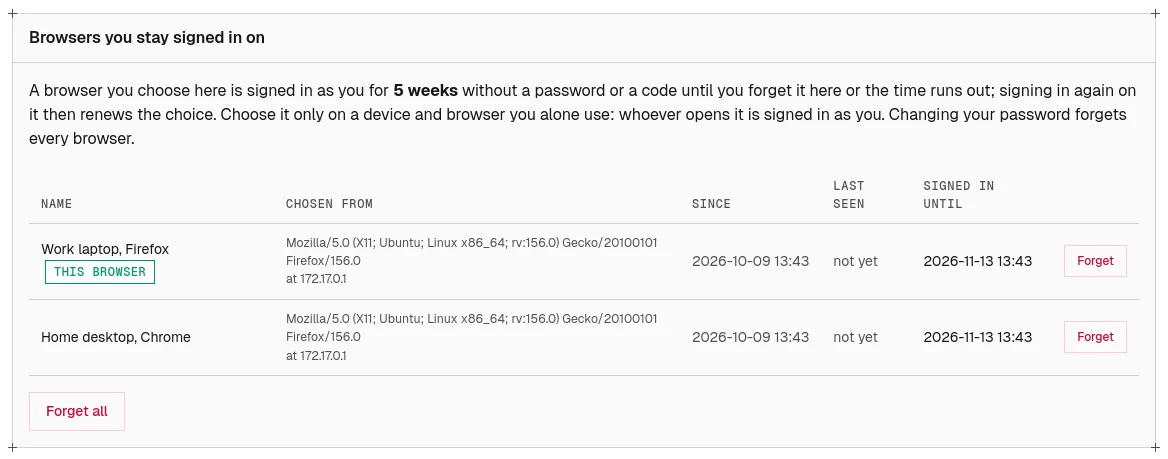
Reading the list
| Column | What it shows |
|---|---|
| Name | The name you gave the browser; this browser marks the one you are using now. |
| Chosen from | How the browser described itself, and the network address it was chosen from. Neither is checked later; they only help you recognize it. |
| Since | When you chose it, and when it was last renewed by a sign-in. |
| Last seen | When the browser last opened a page as you, or not yet. |
| Signed in until | When it stops signing you in, or expired (it renews at the next sign-in on it). |
If you see a browser you do not recognize, forget it at once and change your password.
Forgetting a browser
- On your profile, find the browser in the list.
- Choose Forget on its row. It is removed from the list, and the next time that browser opens your organization's pages, it is asked to sign in.
To forget them all at once, choose Forget all below the list (shown when there is more than one).
A browser is also forgotten when:
- you choose Log out on it;
- you set a new password: that forgets every browser.
If the card says Staying signed in is no longer offered here, your organization or the site has switched the choice off. The browsers still listed no longer sign anyone in, and you may forget them.