How to read a tenant's subscription and licenses, issue a license free of charge or sell one from the prepaid balance, and revoke a license.
For site operators. Reading the Licenses tab needs manage tenants; issuing and revoking also need manage licenses. Refunding a revoked license needs manage site billing.
What a license does
A license lets a tenant's members sign in for a period of time. It is issued under one version of a plan's terms and keeps those terms for its whole life, whatever the plan does later: the length of the license, the number of distinct users allowed a day, the renewal notice, the grace period after it ends and how long data is kept after closing. See Plan terms.
Most licenses are issued by the service itself: a trial license when a prospect creates a trial, and a renewal taken from the prepaid balance shortly before the current license ends. You issue licenses by hand for a new customer, a free grant, a negotiated sale or a change of plan.
The Licenses tab
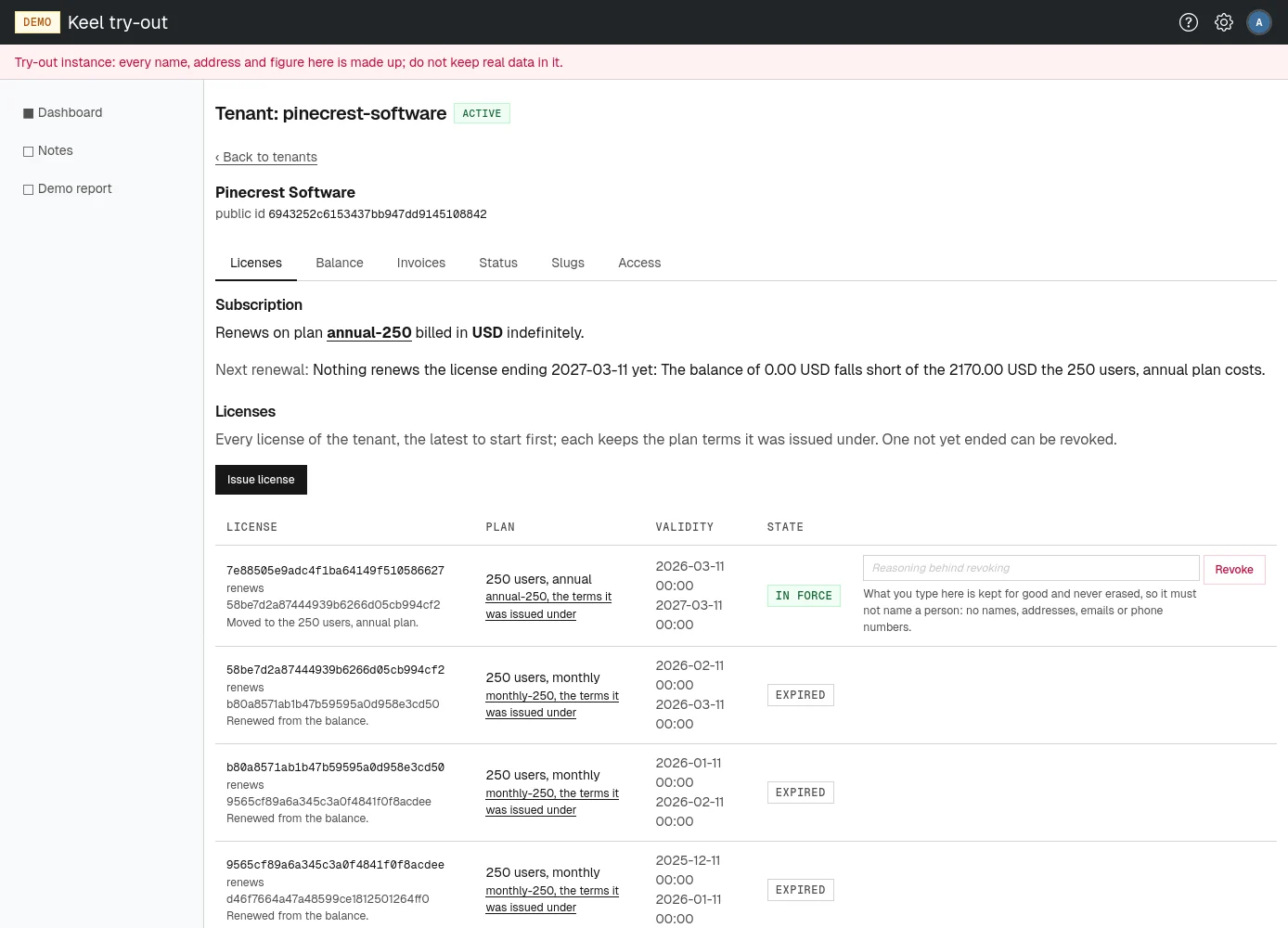
The tenant page opens on the Licenses tab. It has two parts.
Subscription
The subscription is the tenant's choice of what to renew on: Renews on plan <plan> billed in <currency>, indefinitely or until a date. The tenant's own administrators set it on their billing page (see Billing in the administrator part); you cannot change it here. The plan name links to the plan's page.
Next renewal says in one sentence what will happen when the current license ends: which license renews from which date and for how much, or why nothing renews it yet, for example "No subscription follows it.", "No buyer is on record, so no invoice can be issued." or a balance that falls short.
Licenses
Every license of the tenant, the latest to start first, twelve to a page. Each row shows:
- License: its public id, the license it renews (if any) and the annotation it was issued with.
- Plan: the plan's name and a link to the terms version it was issued under.
- Validity: when it starts and when it ends, or "never expires".
- State: in force, upcoming, expired, or revoked (with when, by whom and why).
Use Newer and Older below the table to page through a long history.
Issuing a license
- On the tenant's Licenses tab, choose Issue license. The page Issue a license to <slug> opens.
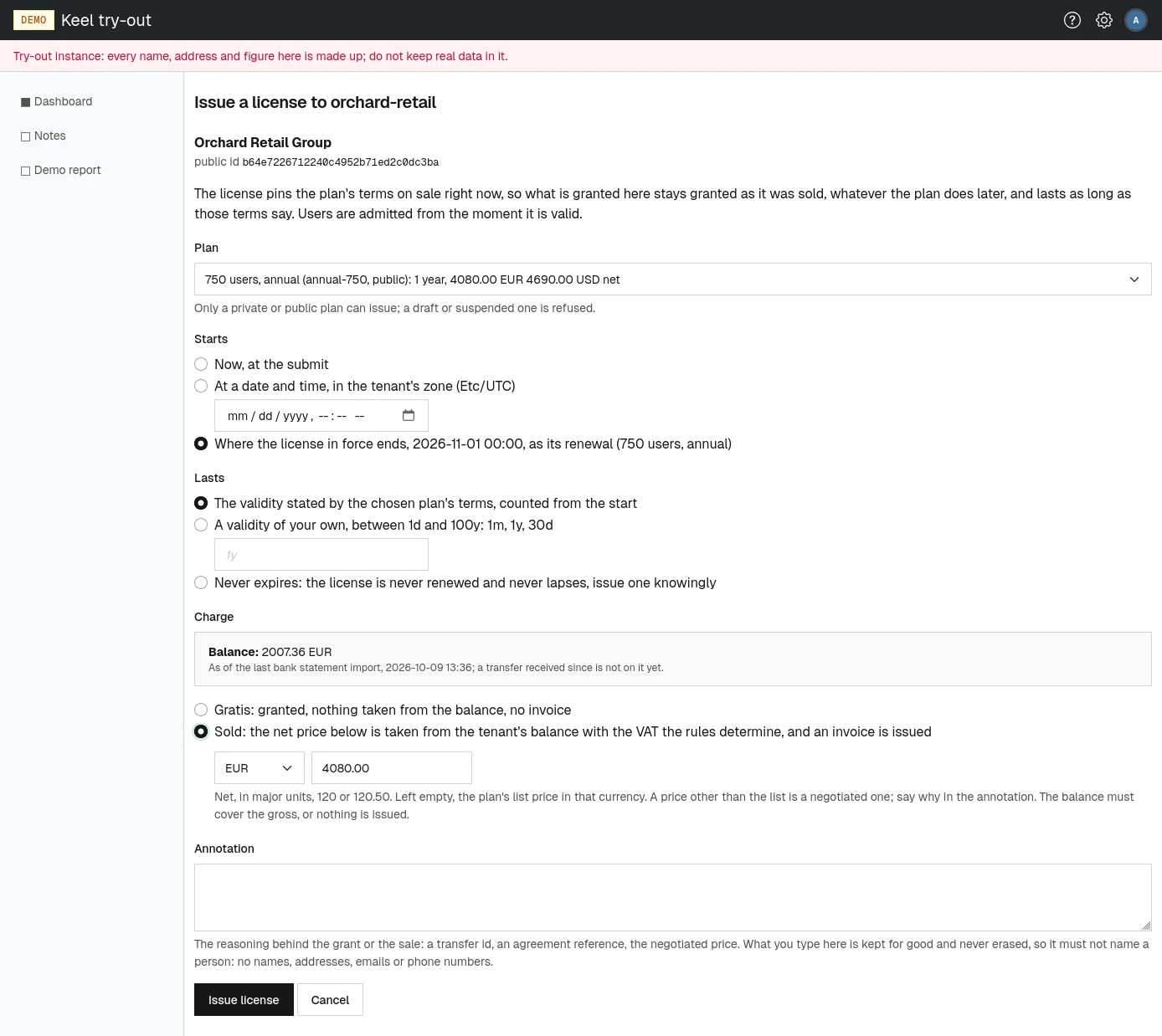
- Choose the Plan. Each option shows the name of its terms on sale, its slug and status, its length and its net prices. Only a private or public plan can issue; a plan with no terms on sale cannot be chosen.
- Under Starts, choose one:
- Now, at the submit;
- At a date and time, in the tenant's zone, and type the date and time;
- Where the license in force ends, as its renewal. This is offered only while a license with an end date is in force.
- Under Lasts, choose one:
- The validity stated by the chosen plan's terms, counted from the start;
- A validity of your own, between 1d and 100y, typed like
1m,1yor30d; - Never expires. Such a license is never renewed and never lapses, so issue one knowingly.
- Under Charge, choose Gratis to grant the license without taking anything from the balance and without an invoice. To sell it instead, see Selling a license from the balance.
- Type the Annotation: the reasoning behind the grant, such as an agreement reference. It is kept for good, so it must not name a person.
- Choose Issue license.
The license appears in the list and is recorded in the licensing audit log. Members are admitted from the moment it is valid. If the tenant is lapsed, the next hourly licensing check makes it active again once the license is in force. A suspended tenant stays on hold until you choose Resume on the Status tab.
Selling a license from the balance
A sale takes the price from the tenant's prepaid balance and issues an invoice, just like an automatic renewal, but at the plan and price you choose.
- Fill in the plan, start and length as for issuing a license.
- Check the Balance box under Charge. It shows the tenant's balance in each currency as of the last bank statement import, and the time of that import. A transfer received since is not on it yet: import the statement first if the customer says they have paid.
- Choose Sold.
- Choose the currency. If the tenant has a subscription, its billing currency is preselected.
- Leave the net amount empty to charge the plan's list price in that currency, or type a negotiated net price in major units, such as
120or120.50. Say why in the annotation. - Type the Annotation, for example a transfer reference or the reason for the price.
- Choose Issue license.
If the sale can go through, the license is issued, the gross amount is taken from the balance and an invoice is numbered in the site's invoice series, all at once. The invoice shows on the Invoices tab and the charge on the statement.
If not, the form comes back with Nothing was charged or issued. and the reason. A sale needs, among other things:
- a buyer on record (the tenant's billing details, set by its own administrators);
- a seller configured for the site (see Seller);
- a VAT rule for the buyer's country that allows the sale, and, where that rule asks for it, a VAT number confirmed by VIES (see VAT);
- the plan priced in the chosen currency;
- a balance that covers the gross amount.
Automatic renewal
You do not need to renew licenses by hand. Every hour the service checks each tenant:
- Within the renewal notice period of the plan's terms, if nothing will renew the license (no subscription, not enough balance, missing billing details), the tenant's billing contacts get one email saying when the license expires, why it will not renew, and the tenant's average daily users against the allowance.
- Within the automatic renewal lead before the license ends, if the balance covers it, the next license is issued to follow the current one, the price is taken from the balance and an invoice is issued. The billing contacts get an email with the invoice.
- If a renewal is refused for a tax reason, the site's billing emails are told once.
- After the license has ended, while the tenant is lapsed and inside its grace period, every check tries again. A top-up that arrives with the next statement import renews the license from its old end, and the tenant is active again at once.
The billing contacts are the tenant's billing address and the site's billing emails.
Revoking a license
A license that has not ended yet, whether in force or upcoming, can be revoked.
- On the Licenses tab, find the license. In its last column, type the Reasoning behind revoking. It is kept for good, so it must not name a person.
- Choose Revoke and confirm.
The license is marked revoked, with the date, your email address and the reasoning, and the revocation is recorded in the licensing audit log. The tenant's users lose access at their next sign-in. With no license left in force, the hourly licensing check treats the tenant like one whose license has ended.
If the license was sold and part of its price can still be refunded, and you hold manage site billing, the correction form opens next, filled in with the share of the unused days, the reason "License revoked on <date>." and your reasoning as the annotation. Nothing is refunded unless you choose Issue the correction; choose Keep the charge, back to the tenant to keep it. See Correcting an invoice.