How to top up your organization's prepaid balance, read its statement, keep the billing details right, and find your invoices.
For administrators who hold the permission manage tenant billing.
Everything here is on the billing page (Billing in the administration, at /tenants/<your tenant>/admin/billing), on its Balance and Invoices tabs. For licenses and the subscription, see Billing and licenses.
The balance
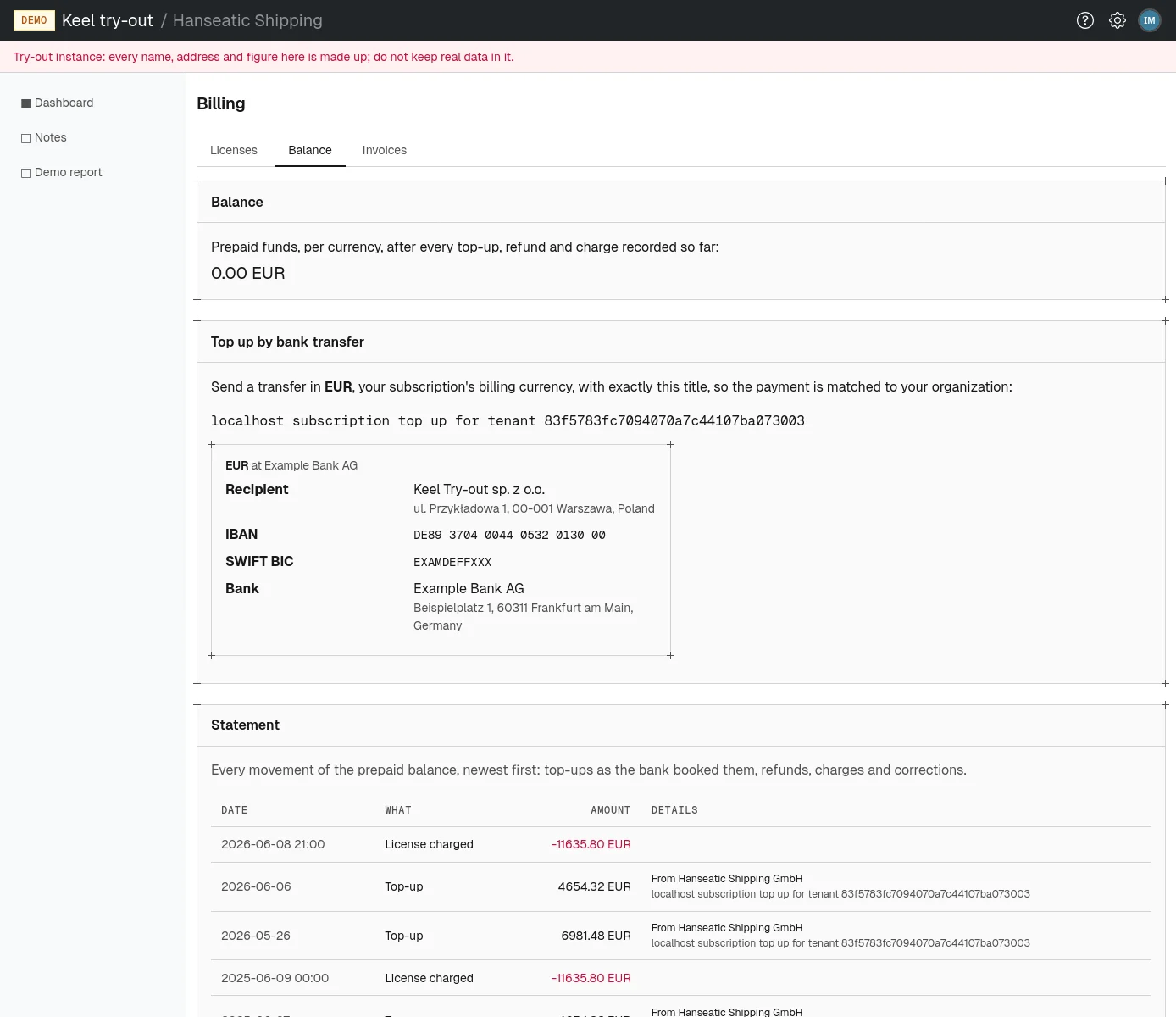
The Balance card shows your prepaid funds, one line per currency, after every top-up, refund and charge recorded so far. A negative amount is shown in red. Before the first top-up, it says "No prepaid funds yet."
Renewals are paid from the balance in the currency of your subscription only. Money in another currency stays there and is not converted.
Topping up
You top up by an ordinary bank transfer. Where to send it depends on the subscription's currency, so the transfer details appear only once a subscription with a billing currency is chosen. Until then the tab says so and links to Choose a subscription.
- Open the Balance tab and find the card Top up by bank transfer.
- Note the currency it names: your subscription's billing currency. Send the transfer in that currency.
- Copy the transfer title shown in the card exactly. It reads like
<service domain> subscription top up for tenant <identifier>and is what matches the payment to your organization. - In your bank, send the amount to one of the accounts listed, using the Recipient, the account number (IBAN, Sort code, account or Routing and account), the SWIFT BIC where shown, and the Bank, with the title as the payment reference.
The money is credited when the site's operators import the bank's statement that contains your payment, so it does not appear at once. It then appears in the statement as a Top-up, and the balance rises. If the renewal was waiting for funds, it goes ahead within the hour.
The statement
The Statement card lists every movement of the balance, newest first, with Older and Newer links to move between pages. Each row has a Date (for bank transfers, the day the bank booked it), What, the Amount (negative in red) and Details such as who the payment came from, its title and any note.
| What | Meaning |
|---|---|
| Top-up | A transfer from you, credited to the balance. |
| Refund | Money paid back to you from the balance. |
| Top-up reversed | A credited top-up taken back by the site's operators. |
| License charged | The price of a license, taken from the balance at renewal. |
| Charge reversed | A charge returned to the balance, for example by an invoice correction. |
| Balance written off | An amount the site's operators wrote off. |
| Write-off reversed | A write-off undone. |
Billing details
The Billing details card on the Invoices tab says who invoices are made out to and where they are sent. Without billing details, no invoice can be issued, and so no paid renewal can happen.
- On the Invoices tab, choose Edit billing details.
- Fill in Legal name, as it should appear on the invoice.
- If your organization has a tax id, fill in Tax id (optional) without its country prefix:
1234567890, notPL1234567890. Leave it empty if there is none; the seller's own VAT rate then applies. - Fill in Address (street, then postal code and city, on the lines your country writes them on) and pick the Country.
- Fill in Billing email. Billing emails and notices go there (see Billing emails).
- Optionally, fill in Purchase order (optional): your own reference, printed on every invoice until you change it.
- Choose Save billing details.
The new details apply to invoices issued from now on. Invoices already issued keep the details they were issued with.
For a VAT number from an EU country, Keel Platform checks it regularly with the EU's VIES register, and the card shows the latest result, for example "VAT number ... confirmed by VIES on ...". If the register rejects the number, the card says "correct it, or the renewal will be refused", and the billing email receives a notice.
Invoices
The Invoices card lists every invoice, newest first, twelve to a page: Number, Issued, Period, Item, Net, VAT and Gross. A paid renewal issues one invoice. Badges mark a correction, an invoice refunded in full, or the amount refunded so far.
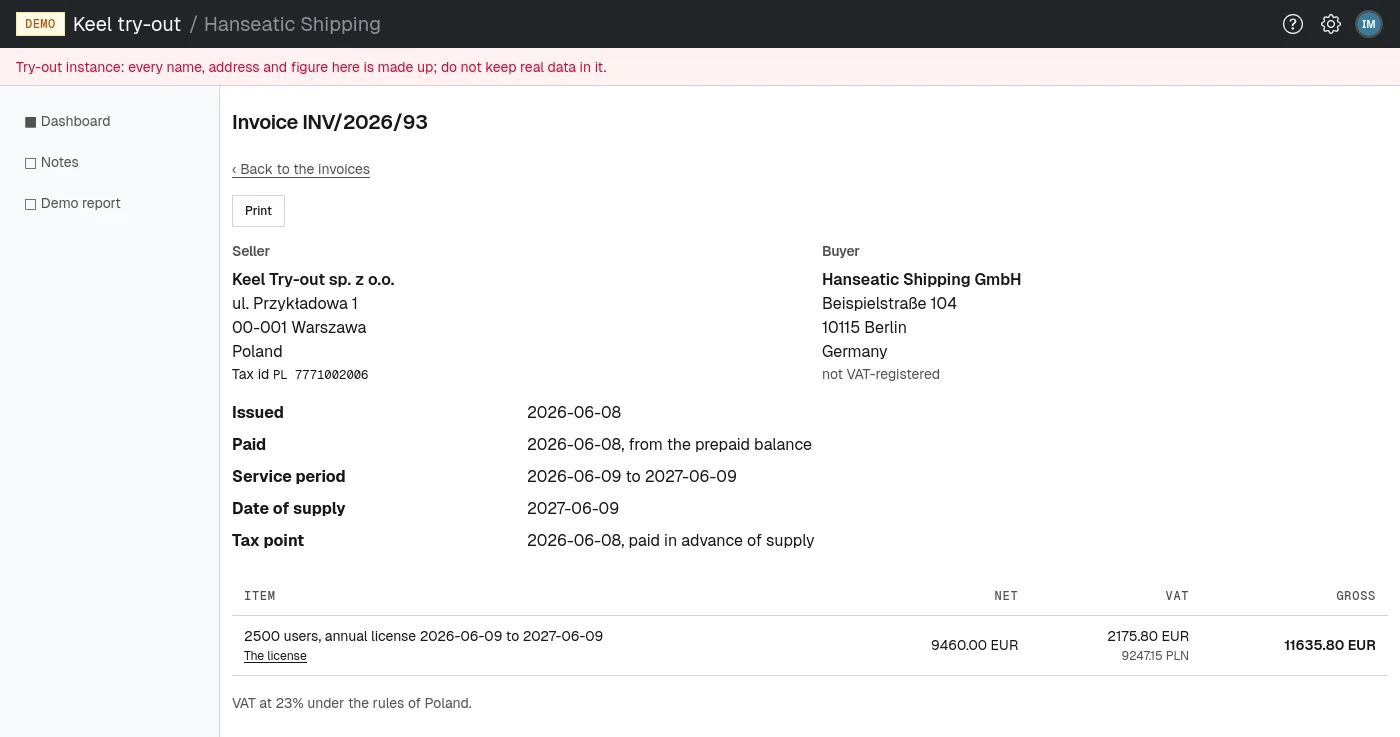
Choose an invoice number to open the invoice. It shows the seller and the buyer, the dates (issued, paid from the prepaid balance, service period, date of supply and tax point), the items and the amounts. A correction invoice names the invoice it corrects and the reason.
- To keep a copy, open the invoice and choose Print. The page prints on A4 without the menus; most browsers can also save it as a PDF file from the print dialog.
Invoices are issued and corrected by Keel Platform and the site's operators only; you cannot change one. If an invoice is wrong, contact the site's operators.