How to change the name your colleagues see, choose your time zone, and check how you sign in.
For every member of a tenant. No permission is needed: the profile only ever shows and changes your own account.
Opening your profile
- Choose your initials in the top right corner. The account menu opens.
- Choose Profile. The Profile page opens, at
/tenants/<slug>/profile.
Your profile belongs to one organization. If you are a member of two, each has its own profile.
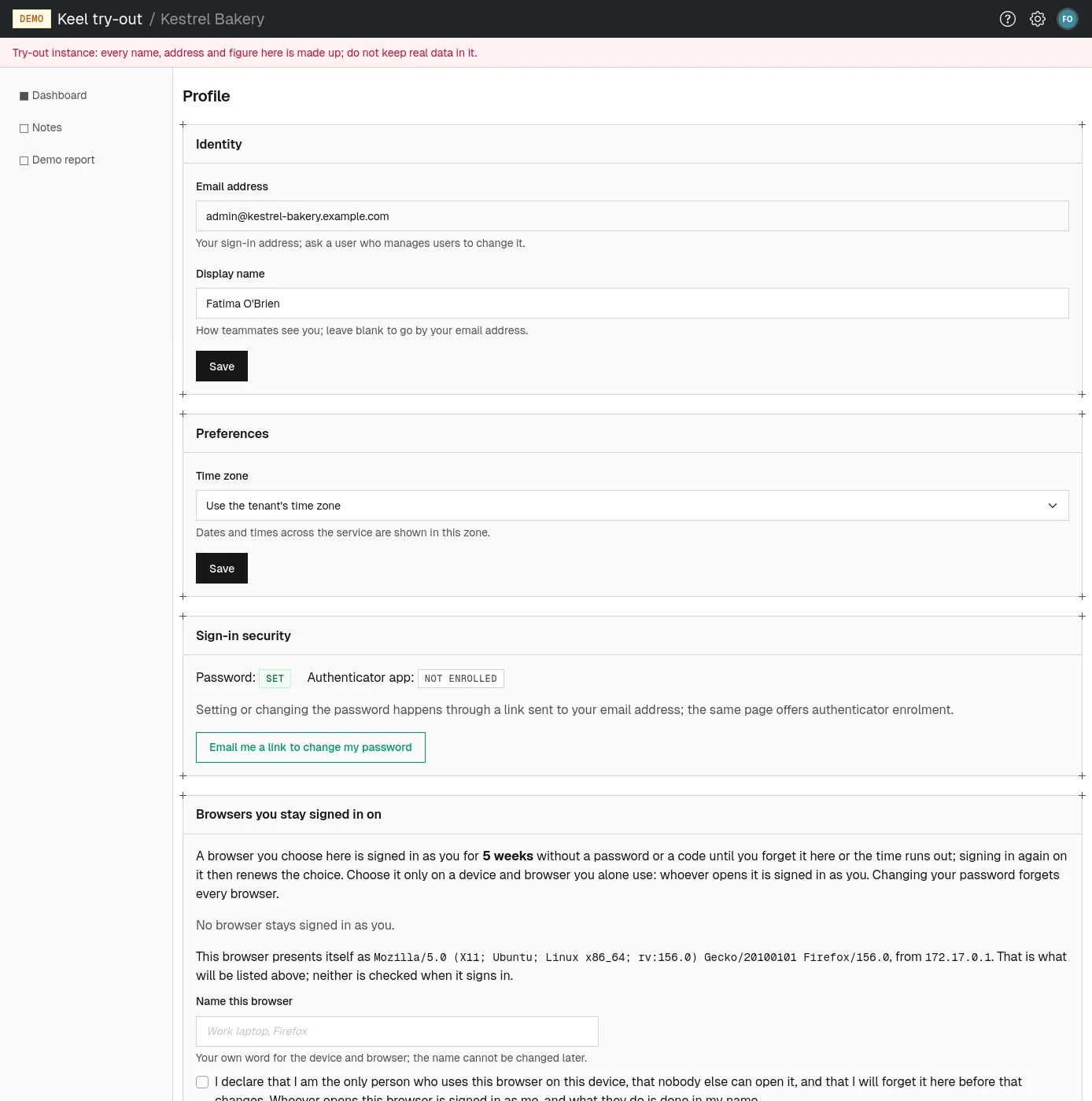
Identity
Email address is your sign-in address. You cannot change it yourself; ask a colleague who manages users in your organization.
Display name is how teammates see you. To change it:
- Type the name into Display name.
- Choose Save in the Identity card. The page reloads, and the new name appears in the account menu and wherever the service names you.
Leave the field empty to go by your email address. Your initials in the top right corner are drawn from the name.
If your organization signs in through an identity provider that supplies your name, the field cannot be edited and says How teammates see you, as your identity provider names you; change it there. Change your name at the identity provider; it is taken over the next time you sign in.
Time zone
Dates and times across the service are shown in one time zone. By default that is your organization's, shown as Use the tenant's time zone. If you work from somewhere else, choose your own:
- In the Preferences card, open Time zone and choose your zone. Zones are named by region and city, for example
Europe/WarsaworAmerica/New_York. - Choose Save in the Preferences card. From now on, dates and times you see are in that zone.
Choose Use the tenant's time zone again to follow your organization's zone.
Sign-in security
This card shows two things at a glance:
- Password: set or not set;
- Authenticator app: enabled or not enrolled.
Both are changed through a link sent to your email address: choose Email me a link to change my password (or Email me a link to set a password). The page the link opens sets the password and also offers to turn on an authenticator app. Setting your password and Two-factor authentication walk through it.
Browsers you stay signed in on
If your organization allows it, the last card, Browsers you stay signed in on, lets you keep a browser signed in for weeks, and lists the browsers where you did. Staying signed in on a browser explains it.
If a change is refused
If something you typed cannot be saved, a red message at the top of the page says why, and nothing is changed. Correct the value and save again.