How to reach your organization's login page, sign in with your password or your organization's identity provider, and sign out again.
For every member of an organization (tenant). No permission is needed.
Your organization has its own address
Each organization on the service is a tenant. A tenant has a short name called a slug, such as hanseatic-shipping, and its login page lives at /tenants/<slug>/login. Your account belongs to that tenant: the same email address in another tenant is a separate account with its own password.
If someone shared your organization's login address with you, open it and go straight to signing in with your password. Bookmarking it saves you the next step.
Choosing your tenant
When you do not know the login address, start from the general login page.
- Open
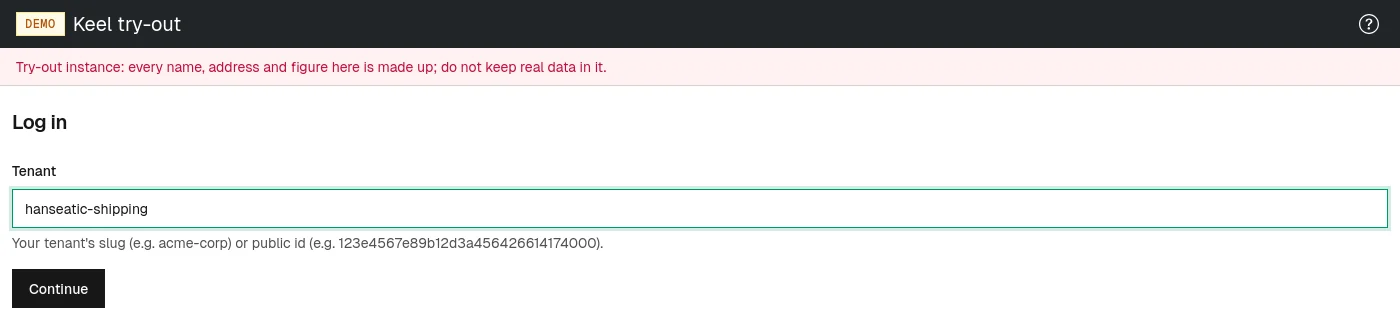
/login, or choose Log in on the front page. A page titled Log in asks for one thing: Tenant. If this browser signed in somewhere before, the field already holds that tenant. - Type your tenant's slug (for example
acme-corp) or its public id, the long code of letters and digits your administrator may have given you. - Choose Continue. You are taken to your tenant's own login page.
If the field is empty you see Type your tenant. If what you typed cannot be a slug, the page says why. If the tenant's login page answers Page not found, check the spelling of the slug; the page also answers this way for an organization whose service is closed or on hold.
Signing in with your password
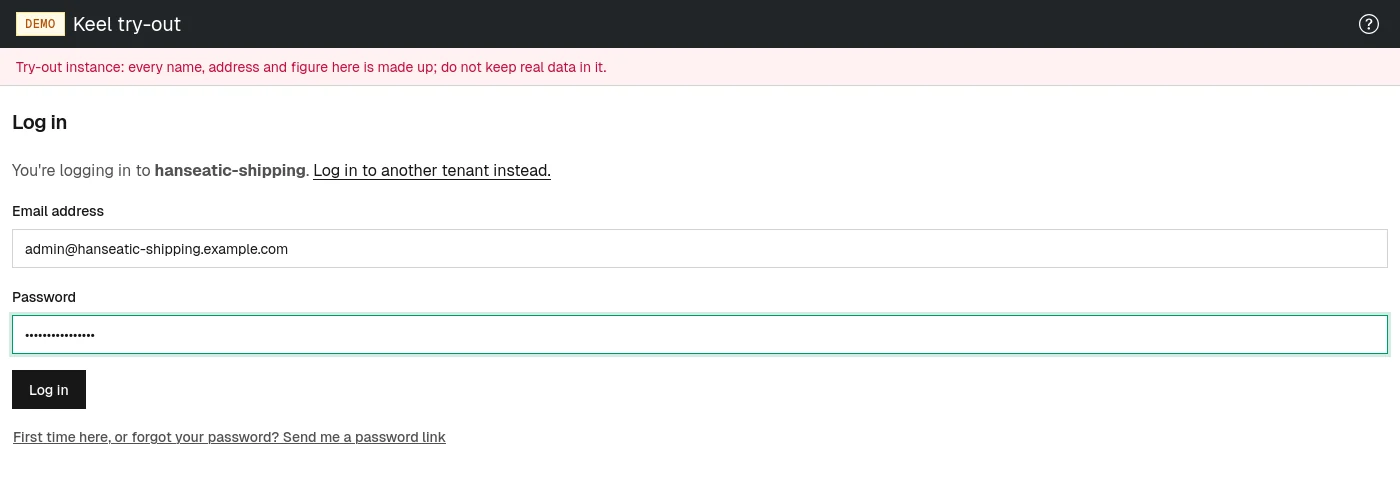
- On your tenant's login page, check the line You're logging in to followed by your tenant's slug. If it is the wrong one, choose Log in to another tenant instead. to go back to the tenant step.
- Type your Email address.
- Type your Password.
- Choose Log in. If you have not set up an authenticator app, you arrive on your organization's dashboard. If you have, a second page asks for a code (see the two-factor code).
Have you never had a password, or forgotten it? Type your email address and choose First time here, or forgot your password? Send me a password link instead. Setting your password explains what happens next. Choosing Log in with the password field left empty does the same.
If the page says This browser stays signed in; signing in renews that for a period of time, you earlier chose to stay signed in on this browser. Signing in now starts that period again. See Staying signed in on a browser.
The two-factor code
If you turned on an authenticator app (see Two-factor authentication), your password alone does not sign you in. After Log in, a page titled Two-factor authentication appears.
- Open your authenticator app and find the entry for this service.
- Type the 6-digit code it shows into Authenticator code.
- Choose Verify. You arrive on the dashboard.
If you see That code was incorrect or has expired., wait for the app to show a new code and type that one. The code page itself is valid for about 5 minutes after your password was accepted; after that, start again from the login page.
Signing in through your organization's identity provider
Some organizations sign their members in through their own identity provider, the company account you already use for email and other tools. In such a tenant, opening the login page takes you straight to the identity provider's sign-in page. There is no password form, and no password link, here.
- Open your tenant's login page, or go through
/loginas above. Your browser moves to your identity provider. - Sign in there as you normally do. Your identity provider sends you back, and you arrive on the dashboard.
If your organization admits you, your membership is set up the first time you sign in this way.
Two pages may appear instead of the dashboard:
- Sign-in unavailable
- The identity provider cannot be reached right now. Wait a few minutes and choose try again. If it keeps happening, tell an administrator of your organization.
- Sign-in refused
- The identity provider, or your organization's settings, did not let you in. The page says why: for example that you cancelled the sign-in, that your account at the provider has no verified email address, or that the provider does not give you what your organization admits its members by. Fix what the message names, or pass it to the person it names, then choose Try again. If the message says the sign-in expired or was started in another browser, simply try again from the same browser.
When sign-in is refused
| What you see | What it means | What to do |
|---|---|---|
| Invalid tenant, email address, or password. | The sign-in did not succeed. On purpose, the message does not say which part was wrong, so nobody can use the page to find out who has an account. It also appears after many failed attempts on the same account in a short time. | Check the email address and password. If you are not sure of the password, ask for a password link. After many failures, wait a few minutes before trying again. |
| Too many requests: You have made too many login attempts. | Too many sign-in attempts came from your network address in a short time. | Wait a few minutes, then try again. |
| Too many requests: This organization has exceeded its licensed number of daily users by more than a tenth. | Your organization's subscription allows a number of different people a day, and that number (plus a margin) is used up. People who already signed in today can still sign in. | Try again later, or ask whoever manages your organization's billing for a larger plan. |
| Something went wrong: This organization has no subscription license. | Your organization has no subscription in force. | Ask whoever manages your organization's billing to arrange one. |
Error pages show a reference code (Quote reference ... if you contact support.). Give that code to whoever helps you; it lets them find exactly what happened.
Being signed in to several organizations
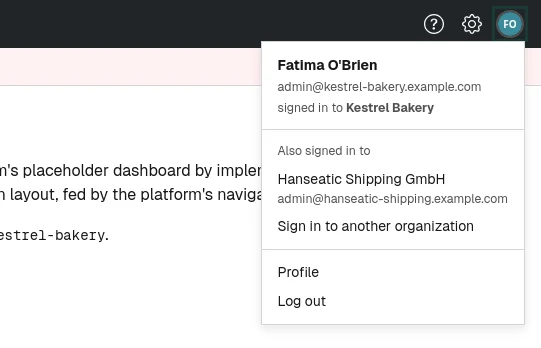
You can be signed in to more than one tenant in the same browser, for example if you work for two organizations. To add another, open the account menu (your initials in the top right corner) and choose Sign in to another organization, then sign in as above.
The account menu then lists the others under Also signed in to; choose one to switch to it. When you open the front page while signed in to several tenants, a page titled Choose a tenant lists them; choose the one you want to continue in.
Signing out
- Open the account menu (your initials in the top right corner).
- Choose Log out. You are signed out of this tenant and land on the front page, or on another tenant you are still signed in to.
Logging out signs you out of the current tenant only. If you had chosen to stay signed in on this browser, logging out also forgets that choice for this browser.
Even if you never log out, a sign-in does not last forever: after some hours (12 by default) you are asked to log in again, unless the browser stays signed in.